Your own alarm sounds, from any audio file
Pick an audio file in the Files app and Alarm Clock Planner turns it into an alarm sound, trimmed to 30 seconds. Use it for one alarm, a whole group, or every alarm by default.

 Alarm Clock Planner is an iPhone appPoint your iPhone camera at the code to install it.
or text me the link
What it does
Alarm Clock Planner lets you wake up to any audio file you have on your iPhone or in iCloud Drive: a voice memo, a clip from a song you own, a recording of your kids. You tap Add custom sound, choose the file, and the app imports it, cuts a silent start of up to 10 seconds and keeps up to 30 seconds. Next to your imports sit 15 built-in tones and the system Default sound.
The Clock app also has a Sound option for each alarm, and Apple's own steps say to tap Sound and pick the sound that plays. What Clock does not have is a button that takes an audio file from Files. Getting your own clip into Clock means turning it into a ringtone first (on iOS 26, from Files with Share, More, Use as Ringtone for a file under 30 seconds; before that, with GarageBand), or using Pick a song for a track downloaded to your Apple Music library, which our guide to custom alarm sounds on iPhone walks through. In Alarm Clock Planner the file itself is the alarm sound, and you can give one sound to a whole group of alarms instead of setting each one by hand.
How it works
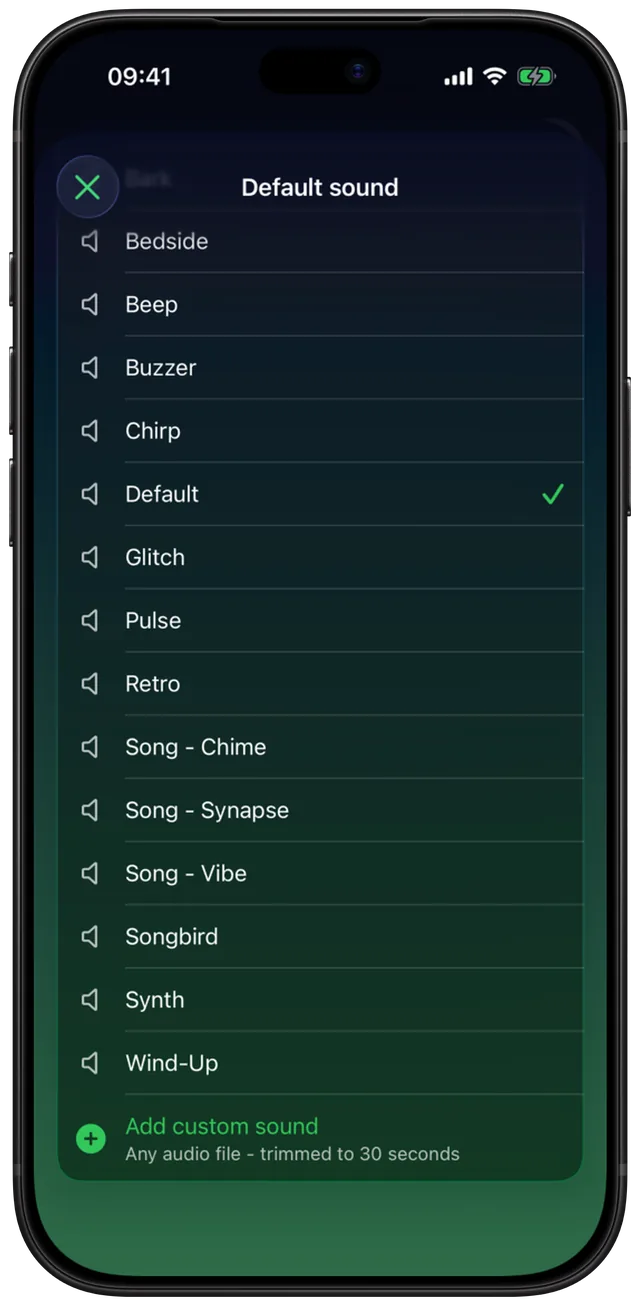
Every sound list in the app works the same way. Tap a row to hear it on a loop, tap it again to stop, and the checkmark shows what is chosen. Your imports appear under a Custom heading, and Add custom sound sits at the bottom of the list.
- Open the alarm (or tap + for a new one) and tap the Sound row under Title. The Alarm sound list opens.
- Tap Add custom sound. The row reads "Any audio file - trimmed to 30 seconds".
- Pick one audio file in the file browser. The row shows Importing… while it works.
- The new sound is selected and starts playing so you can check it. Its name is the file name.
- Close the list and save the alarm with the checkmark. The Sound row now shows the name of your file.
To use the same sound for a set of alarms, open the More menu, choose Edit groups, tap a group and tap Sound. The Group sound list is the same picker. For every other alarm, go to Settings and tap Alarm sound, which opens the Default sound list. The setup screens also ask you to Pick your default sound, with Add custom sound at the very top. An imported sound shows up in all three lists, so you import a file once and use it anywhere.
Options
A sound can be set in three places. The most specific one wins:
| Where | How to get there | What it covers |
|---|---|---|
| One alarm | Alarm editor, Sound row | That alarm only. Wins over the group and the default. |
| A group | Edit groups, the group, Sound | Every alarm in the group that has no sound of its own. |
| Default | Settings, Alarm sound | Every other alarm, plus new alarms. |
In the alarm editor, the first row of the list is Default (from Settings), or Default (from group) when the alarm's group has its own sound. Choose it to go back to inheriting. Even then, the Sound row names the sound that will really ring, not just "Default". When you change a group's sound or the Settings sound, the app reschedules the alarms that use it, so the change applies straight away.
The built-in list holds 15 tones: Arcade, Bark, Bedside, Beep, Buzzer, Chirp, Glitch, Pulse, Retro, Song - Chime, Song - Synapse, Song - Vibe, Songbird, Synth and Wind-Up. A 16th row, Default, is the iPhone's own system alarm sound when you pick it in Settings or for a group. In a single alarm's list it works like the Default (from Settings) row: the alarm follows its group or your Settings sound.
| Imported file | What the app does |
|---|---|
| MP3, M4A, WAV, AIFF or CAF, 30 seconds or less, no silent start | Copied as it is |
| Longer than 30 seconds | Converted to M4A and cut to 30 seconds |
| Starts with up to 10 seconds of silence | The quiet start is cut so the alarm is heard at once |
| Any other audio format iOS can read | Converted to M4A |
Imported sounds stay in your sound lists; the app has no way to remove one yet. Sounds are free to use, import and assign. The free version keeps up to 3 alarms, and the sounds work the same in all of them. With iCloud Backup on, your imported audio files go into the backup along with alarms, groups and settings (turn on Back up to iCloud in Settings).
When to use it
A wake-up song you actually like
Cut the chorus of a song you own into a short file, import it, and set it as your default. The guide to using a purchased song as an alarm shows how to get the clip onto the phone.
A voice you know
Record a message in Voice Memos, share it to Files, and import it. A child saying "time to get up" or your own reminder to pack the gym bag works better than a beep.
Telling alarms apart without looking
Give your Medication group one sound and your Work group another. When something rings in the next room, you know which one it is. Set the group sound once and every alarm you add to the group follows it.
One alarm that has to stand out
An early flight or an exam day deserves a sound you never hear otherwise. Set it on that dated alarm only, and the rest keep the default.
A gentler nap
Naps use your default sound. Pick something soft as the default if you mostly nap, and give your morning alarms a louder sound per alarm or per group.
Limits
- 30 seconds at most. Longer files are cut. The clip starts at the first sound in the first 10 seconds of the file (a longer silent intro is kept), and you cannot pick a different starting point in the app. Trim the file before importing if you want the chorus, not the intro.
- No Apple Music or streaming tracks. Protected files cannot be read, and the app says so: "DRM-protected files (like Apple Music tracks) can't be used as alarms." There is no link to a streaming service either, so a playlist from a music app cannot be an alarm.
- Audio files only. The file browser shows audio, not video. To use the sound of a video, save its audio as a separate file first.
- One file at a time, from Files. The app has no recorder and no web download. Anything you can see in the Files app, including iCloud Drive, can be imported.
- No rename and no volume slider. The sound takes the file's name, so rename the file before importing. Loudness depends on the file and on the volume iOS sets for alarms.
- One sound per alarm. There is no shuffle and no list of sounds that rotate.
- No delete yet. Imported sounds stay in your lists for good, so import only the files you want to keep and name them clearly first.
Your sound plays through Silent mode and Focus like any other alarm in the app. See alarms that ring on Silent, and the steps above to set one.
Frequently asked questions
How do I add a custom alarm sound to my iPhone?
In Alarm Clock Planner, open an alarm, tap Sound, then Add custom sound, and pick any audio file from Files. The app imports it, trims it to 30 seconds and selects it. In the Clock app the file first has to become a ringtone, which our guide covers.
Can I set a custom alarm sound on iPhone for free?
Yes. Importing and using custom sounds in Alarm Clock Planner costs nothing. The free version keeps up to 3 alarms, and each of them can ring with your own sound.
Can I use a Spotify or Apple Music song as an alarm sound?
Not in Alarm Clock Planner. Streaming and Apple Music tracks are protected, and the app shows that DRM-protected files can't be used as alarms. A song you own as a plain audio file, such as an MP3 or an unprotected M4A, works. The Clock app can play an Apple Music song through Sound, Pick a song, once you add it to your library and download it. Spotify tracks can't be an alarm in either app.
Can I make a custom alarm sound without GarageBand?
Yes. Alarm Clock Planner takes the audio file directly, with no ringtone export. It converts files it needs to, cuts up to 10 seconds of silence at the start and keeps the first 30 seconds of sound. On iOS 26 you can also open a short MP3 or M4A in Files, tap Share, then More, then Use as Ringtone, and pick it in the Clock app's Sound list.
Can I use the sound from a video as an alarm?
Not directly. The file browser in the app shows audio files only, so save the video's sound as an audio file first, then import that file with Add custom sound.
Can different alarms have different sounds?
Yes. Set a sound on one alarm, on a group so all its alarms share it, or in Settings as the default. An alarm's own sound wins over its group, and the group wins over the default.
Sources
Wake up to a sound you chose
Get Alarm Clock Planner on the App StoreMore features
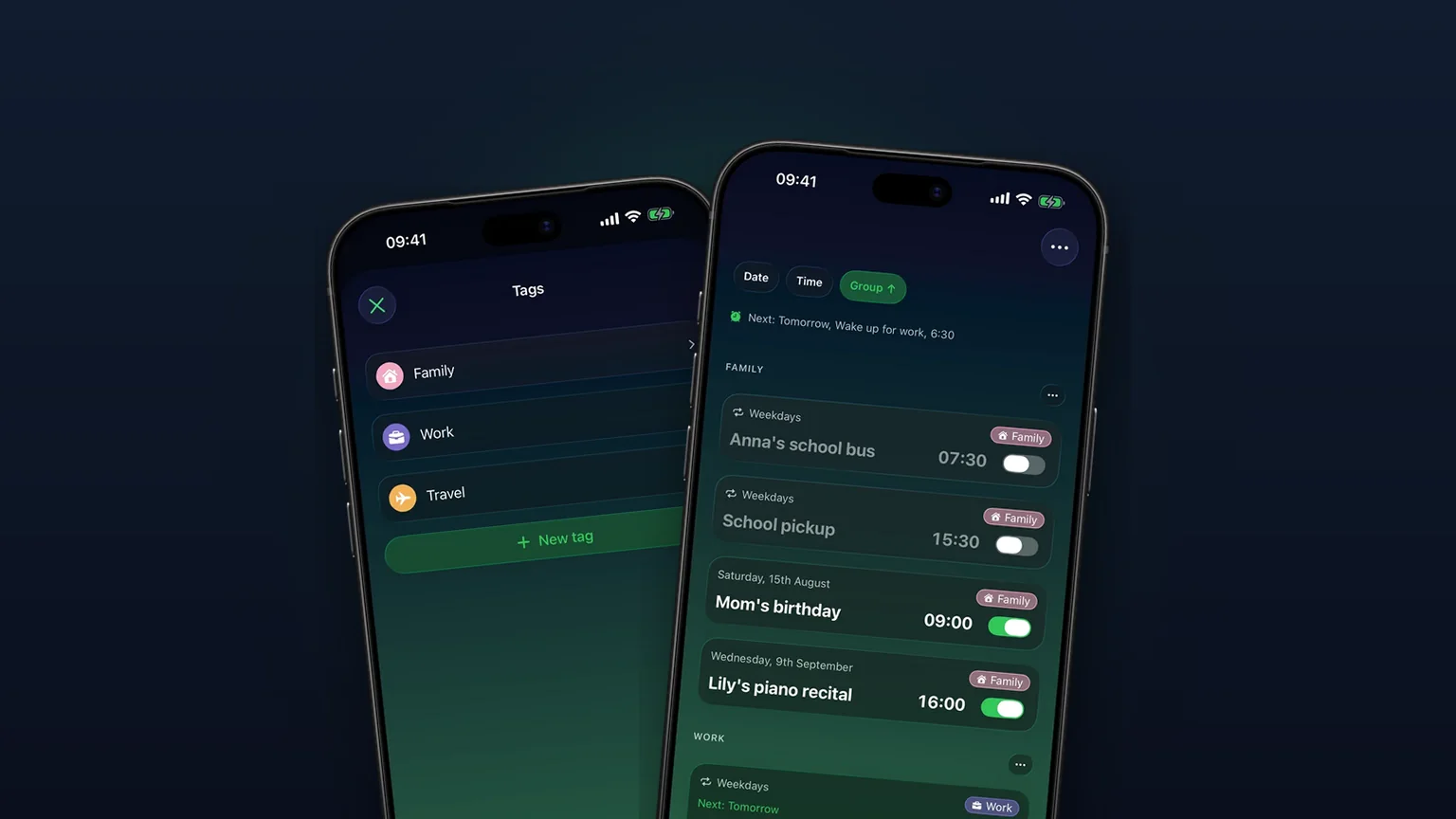
Alarm groups with color-coded tags
Color-coded groups like Work, Family or Travel, each with its own sound and snooze, plus switching and bulk edits for a whole group at once with unlimited access.
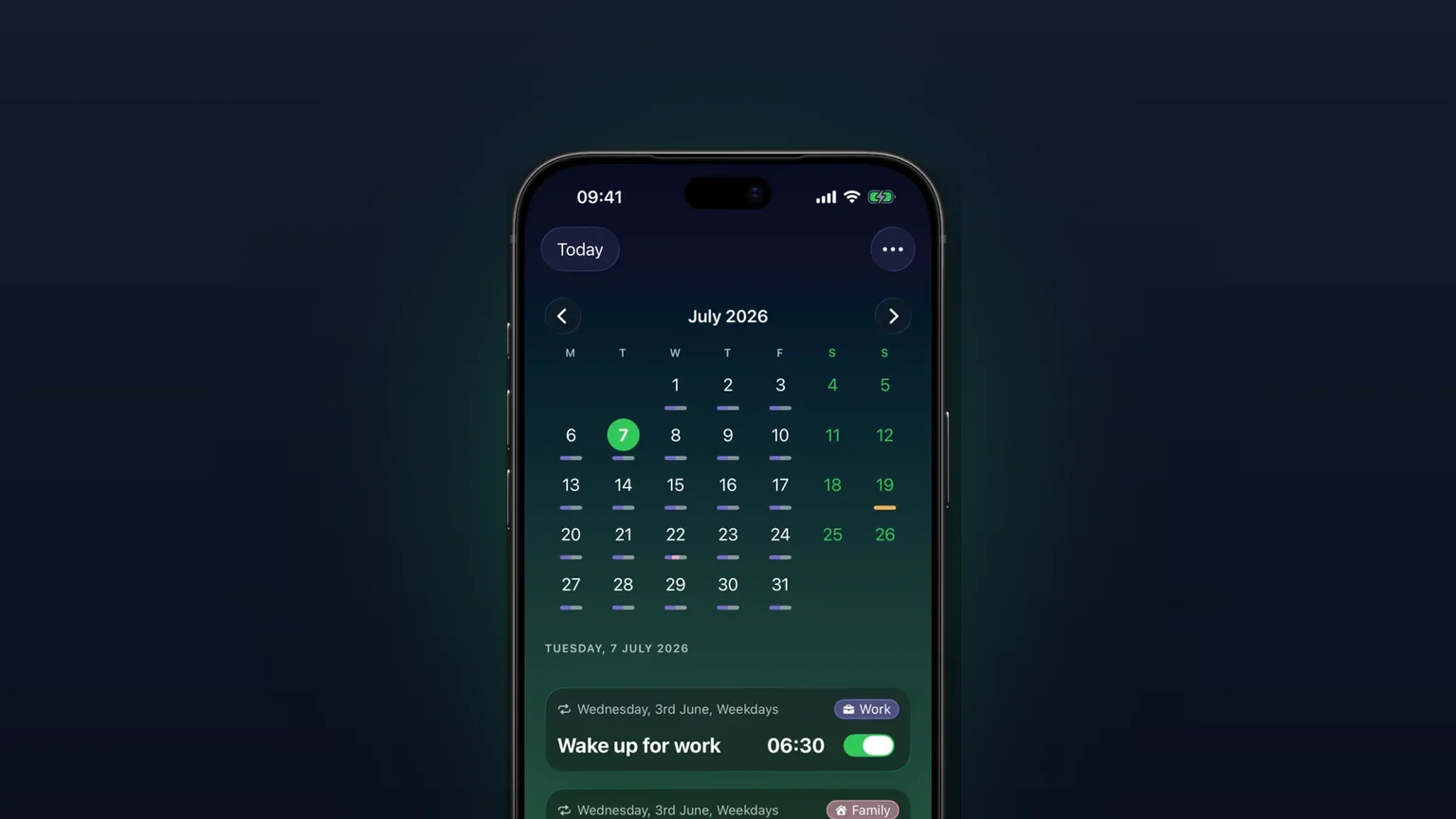
Calendar view of every alarm
Every alarm on a month grid, coloured by tag; tap a day to see, edit or skip what rings that day.
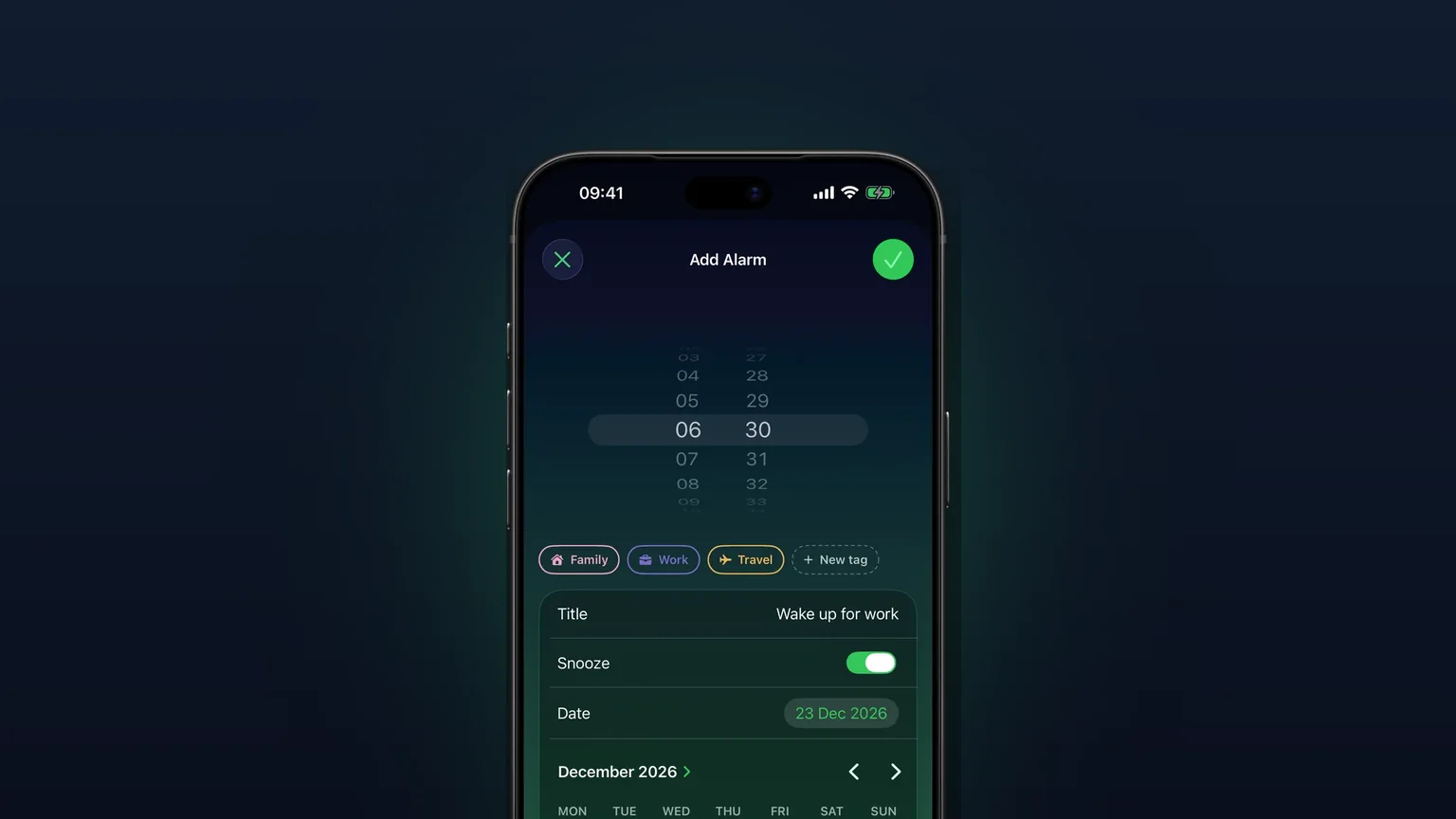
Alarms for any future date
Pick any future day on a calendar; a one-off alarm rings once on that date, then switches itself off.