How to Group and Organize Alarms on iPhone
Fifteen alarms in one flat list. Which three are the school run? Which are safe to turn off for vacation? The Clock app lets you name an alarm, but it will not group them, color them, or switch a whole set off together.
 Alarm Clock Planner is an iPhone appPoint your iPhone camera at the code to install it.
or text me the link
Quick answer: The built-in Clock app keeps every alarm in one flat list with no folders or groups, a feature users have requested for years. Alarm Clock Planner groups alarms with color-coded tags: toggle an entire group at once, bulk-edit several alarms, sort by date, time, or group, and give each group its own sound.
The flat-list problem
The Clock app shows alarms as one long list ordered by time. With three alarms that is fine. With a family's worth of wake-ups, school runs, pickups, and appointments, it gets hard to scan. You can give each alarm a name, but there is no way to group them, color them, or act on several at once, so every change means scrolling, guessing, and toggling things one by one. Apple's own feedback channels are full of requests for alarm folders. They have not arrived.
Tags: groups that stay visible
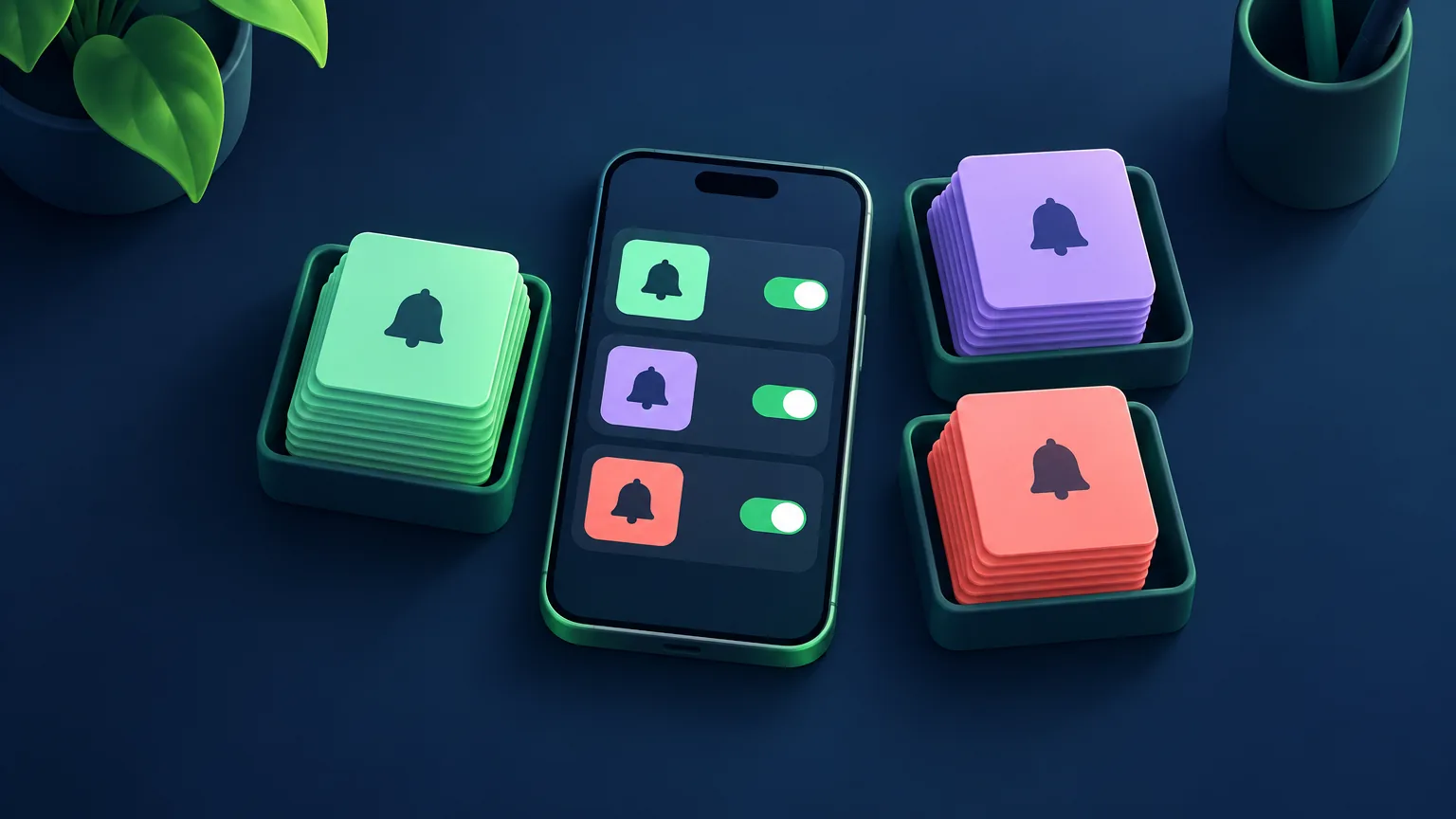
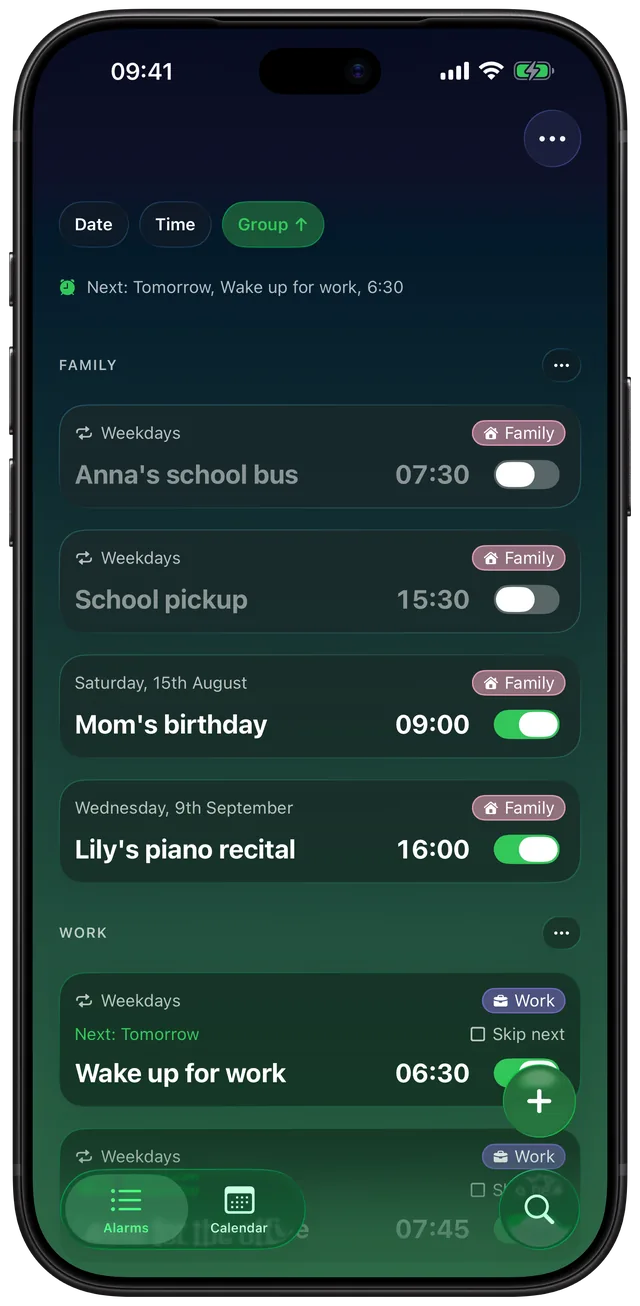
In Alarm Clock Planner every alarm can carry a color-coded tag: Work, Family, Travel, Health, or anything you create. The tag shows on the alarm card as a colored chip, so the list explains itself at a glance. Each group can have its own sound too, so you know what kind of alarm is ringing before you look.
- When creating or editing an alarm, tap a tag chip to assign it, or create a new tag with its own color and icon.
- In the alarm list, alarms sort and section by group, or by date or time if you prefer.
- Give the group a default sound once, and every alarm in it follows.

Toggle or edit a whole group at once
This is where groups pay rent:
A Sleep Schedule wake-up set in the Health app is not part of any group, so for a day off see how to skip the Sleep Schedule alarm on iPhone without losing the schedule.
- Going on vacation? Toggle the entire Work group off in one motion. Every wake-up, commute, and meeting alarm goes quiet together, and comes back the same way.
- Schedule moved by an hour? Bulk-select the affected alarms and move them together instead of editing five alarms one by one.
Group alarms with friends or family
Some people searching for "group alarms" mean something else: one alarm that rings on several people's phones, like a family wake-up or a team call. The iPhone Clock app cannot share alarms, and neither can Alarm Clock Planner; its groups organize your own alarms. If shared alarms are what you need, Galarm is built for them, with group alarms that ring for everyone, confirmations and a chat. The Galarm comparison puts both apps side by side.
See the plan, not just the list
The calendar view lays every alarm out on a month grid, so you can spot the empty weekend or the double-booked morning before it happens. It pairs naturally with date-based alarms: plan weeks ahead and keep it organized.
Comparing alarm apps? See 11 iPhone alarm apps compared.