Repeating alarms: monthly, yearly, every other week and custom
Pick a start day, choose how often the alarm comes back, and save. Alarm Clock Planner handles weeks, months and years, and can stop the series on a date you choose.

 Alarm Clock Planner is an iPhone appPoint your iPhone camera at the code to install it.
or text me the link
What it does
Every alarm in Alarm Clock Planner has a Repeat menu with eight choices: Never, Every day, Weekdays, Weekends, Weekly, Monthly, Yearly and Custom. Weekly, Monthly and Yearly also take a number, so the same alarm can ring every 2 weeks, every 3 months or every 5 years. Any repeat can start on a future day and end on a date you set.
The built-in Clock app is a solid daily alarm. It rings through Silent mode and Do Not Disturb, and its Repeat option sets up a recurring alarm. What it does not have is a date. Apple's steps for a Clock alarm list a time, Repeat, Label, Sound and Snooze, and nothing that says which day a series starts, so there is nothing to hang a monthly, yearly or every-other-week pattern on. Alarm Clock Planner puts the start date inside the alarm, and the pattern counts from there. For the general iPhone workarounds, see how to set a monthly or yearly alarm on iPhone.
How it works
- Tap the + button. The Add Alarm screen opens.
- Turn the time wheel to the hour and minute.
- Tap the Repeat menu and pick a pattern. Once you pick anything other than Never, the Date row is renamed Starts.
- Tap Starts and choose the first day on the calendar. For Monthly, that day's number becomes the day of the month. For Yearly, its month and day become the yearly date. For Weekly, its weekday becomes the day it rings.
- For Weekly, Monthly or Yearly, use the Every row's plus and minus buttons to set the gap, for example 2 weeks. For Custom, tap the weekday chips you want.
- Optionally tap End repeat and pick the last day. It reads Never until you do, and Remove end date sets it back.
- Add a Title, Sound or group if you like, then tap the checkmark to save.
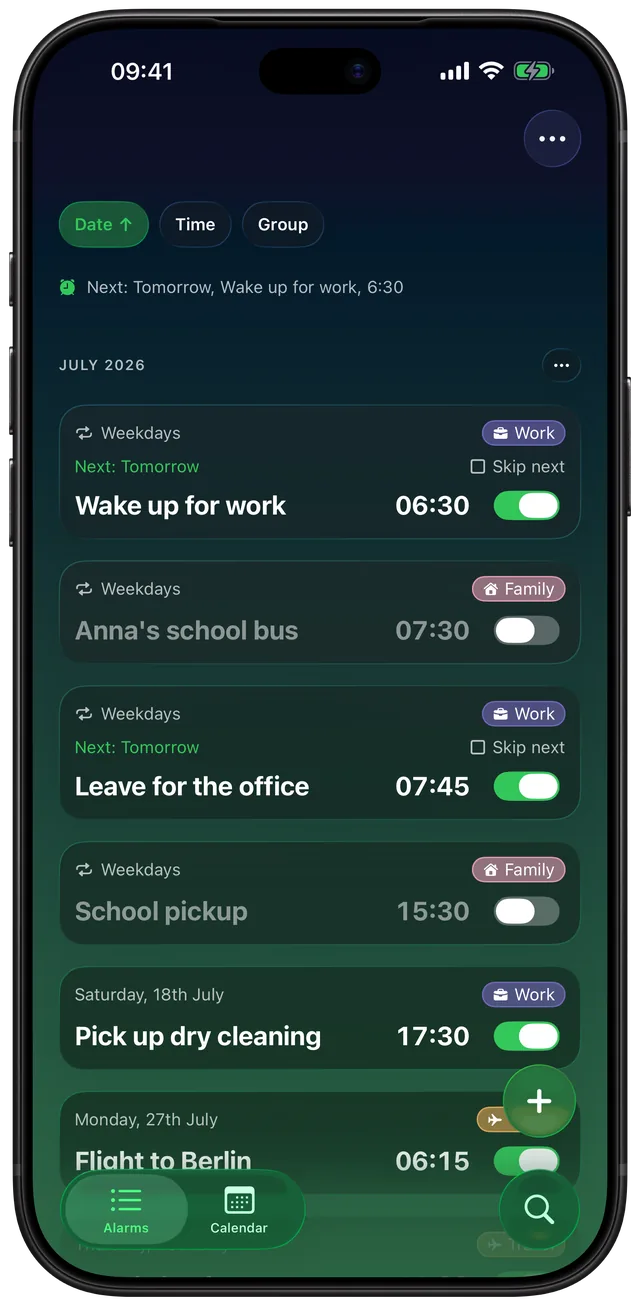
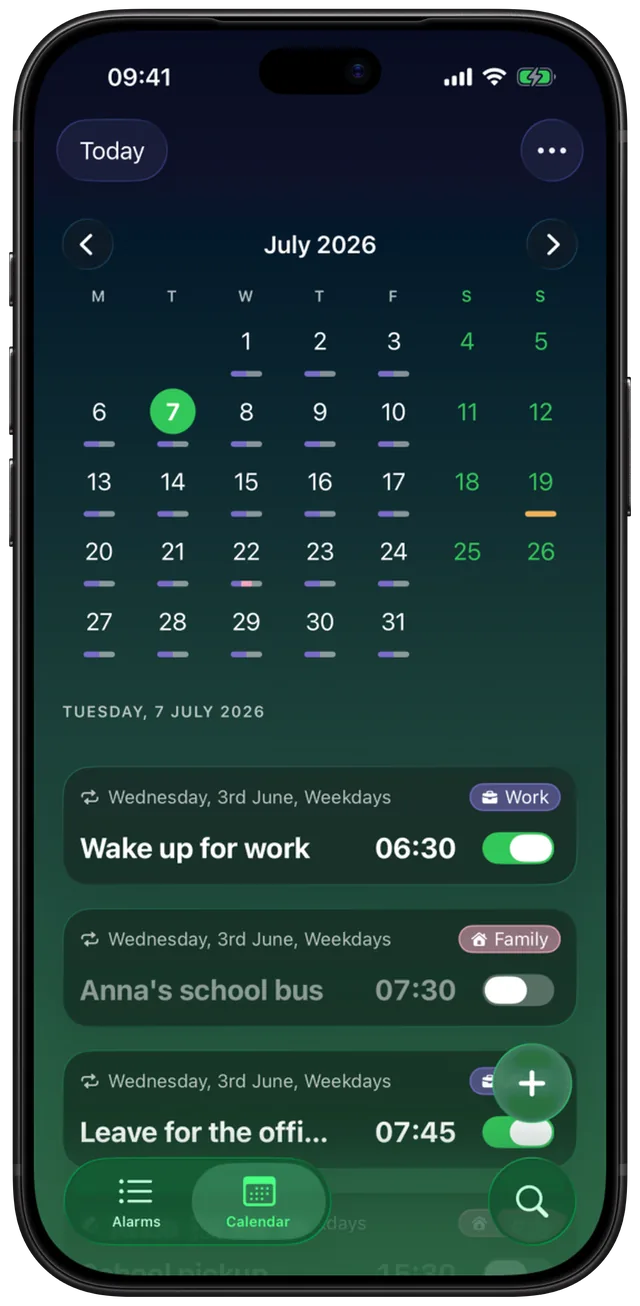
The alarm card in the list then shows the pattern on its top line, such as Weekdays, Every 2 weeks or Every 3 months, and the Calendar tab marks every day it will ring.
Options
| Repeat | When it rings | Every |
|---|---|---|
| Never | Once, on the chosen date. See alarms for any future date. | None |
| Every day | Daily from the start date. | None |
| Weekdays | Monday to Friday. | None |
| Weekends | Saturday and Sunday. | None |
| Weekly | On the start date's weekday. | 1 to 12 weeks |
| Monthly | On the start date's day of the month. | 1 to 11 months |
| Yearly | On the start date's month and day. | 1 to 10 years |
| Custom | On the weekdays you tick, any mix. | None |
A few details worth knowing:
- Every other week is Weekly with Every set to 2 weeks. The count starts from the week of the start date.
- Short months. A monthly alarm set for the 31st rings on the last day of shorter months, such as 30 April or 28 February, then goes back to the 31st when the month has one. The 29th and 30th work the same way.
- 29 February. A yearly alarm started on 29 February rings on 28 February in other years and returns to the 29th in leap years.
- Start date. A repeat never rings before its start day, so a weekday alarm for a job that starts next month stays quiet until then.
- End repeat. The end date cannot be before the start or in the past. Move the start past the end and the end date clears.
- Skip next. Each switched-on repeating card has a Skip next tick that skips one ring and keeps the rest. It needs the unlock. See how to skip an alarm once.
When to use it
Bills and rent on the same day each month
Rent due on the 1st, a card payment on the 25th. Set Monthly with the start date on that day and title it, so the alarm tells you why it is ringing.
An every-other-week shift or bin day
Recycling every second Tuesday, or a fortnightly early shift. Pick the next Tuesday it happens as the start, set Weekly, and turn Every up to 2 weeks.
Medication or checks every few months
An injection every 3 months or a filter change every 6. Monthly with Every set to 3 or 6 months counts from your start date, so you do not have to work the dates out yourself.
Birthdays and renewals once a year
A birthday, a car insurance renewal, a passport check every few years. Yearly rings on the same date each year, or every 2 to 10 years if you raise Every.
A schedule with a known end
A course that runs Monday, Wednesday and Friday until June. Use Custom, tick the three days, and set End repeat to the last day of term. Put them in one group and, with the unlock, switch them all off at once. See how to group and organize alarms.
Limits
- No "first Monday" or "last day" rules. Monthly repeats by day number, not by weekday or by the last day of the month. The only clamp is for short months.
- No gap for Custom or daily patterns. Every only appears for Weekly, Monthly and Yearly. Custom days, Every day, Weekdays and Weekends ring every week. There is no every-N-days or hourly repeat.
- One date per series. Monthly and Yearly take the day from the start date, so two days a month means two alarms.
- Monthly, yearly and every 2 to 12 weeks alarms are set one ring at a time. iOS alarms can only repeat weekly on set weekdays, so for the longer patterns the app sets the next ring when you tap Stop or Snooze. If a ring goes unanswered, the next one is set the next time you open the app.
- End dates on weekly patterns are applied when the app opens. Every day, Weekdays, Weekends, Custom and Weekly at every 1 week repeat inside iOS, and the app switches them off once the end date has passed and you open it. Until then such an alarm can still ring after its end date.
- Free for up to 3 alarms. Repeating alarms are not locked, but each one counts toward the 3 alarms you can keep without a purchase, switched on or off, until its end date passes. Skip next needs the unlock.
- 50 scheduled alarms at most. The app stops adding alarms when 50 are scheduled at once.
For one-off dates, see setting an alarm for a specific date. For everyday repeats in Clock and elsewhere, see recurring alarms on iPhone.
Frequently asked questions
Can I set a monthly alarm on iPhone?
Apple's steps for a Clock alarm list Repeat, Label, Sound and Snooze, with no date to start a monthly pattern from. In Alarm Clock Planner you pick Monthly in the Repeat menu and choose the start day. It rings on that day number every month, or every 2 to 11 months if you raise Every.
How do I set an alarm every other week on iPhone?
In Alarm Clock Planner, set Repeat to Weekly, pick the first day it should ring as the start date, and set Every to 2 weeks. It rings on that weekday every second week, counted from the start date. Weekly goes up to every 12 weeks.
Can I set a yearly alarm on iPhone?
Yes, with Repeat set to Yearly in Alarm Clock Planner. It rings on the start date's month and day each year, or every 2 to 10 years. An alarm started on 29 February rings on 28 February in non-leap years.
What happens to a monthly alarm on the 31st in a short month?
It rings on the last day of that month, such as 30 April or 28 February. The app remembers you chose the 31st, so it goes back to the 31st in months that have one.
Can a recurring alarm stop on a certain date?
Yes. Tap End repeat in the alarm and pick the last day. Monthly and yearly alarms, and Weekly set to every 2 weeks or more, stop on their own. Every day, Weekdays, Weekends, Custom and plain weekly alarms repeat inside iOS, so the app switches them off the next time you open it after the end date.
Are repeating alarms free?
Yes, every repeat option is free. Without a purchase you can keep up to 3 alarms, and each repeating alarm counts as one until its end date passes. Skipping a single ring with Skip next needs the unlock.
Sources
Set the alarm once, let it come back
Get Alarm Clock Planner on the App StoreMore features
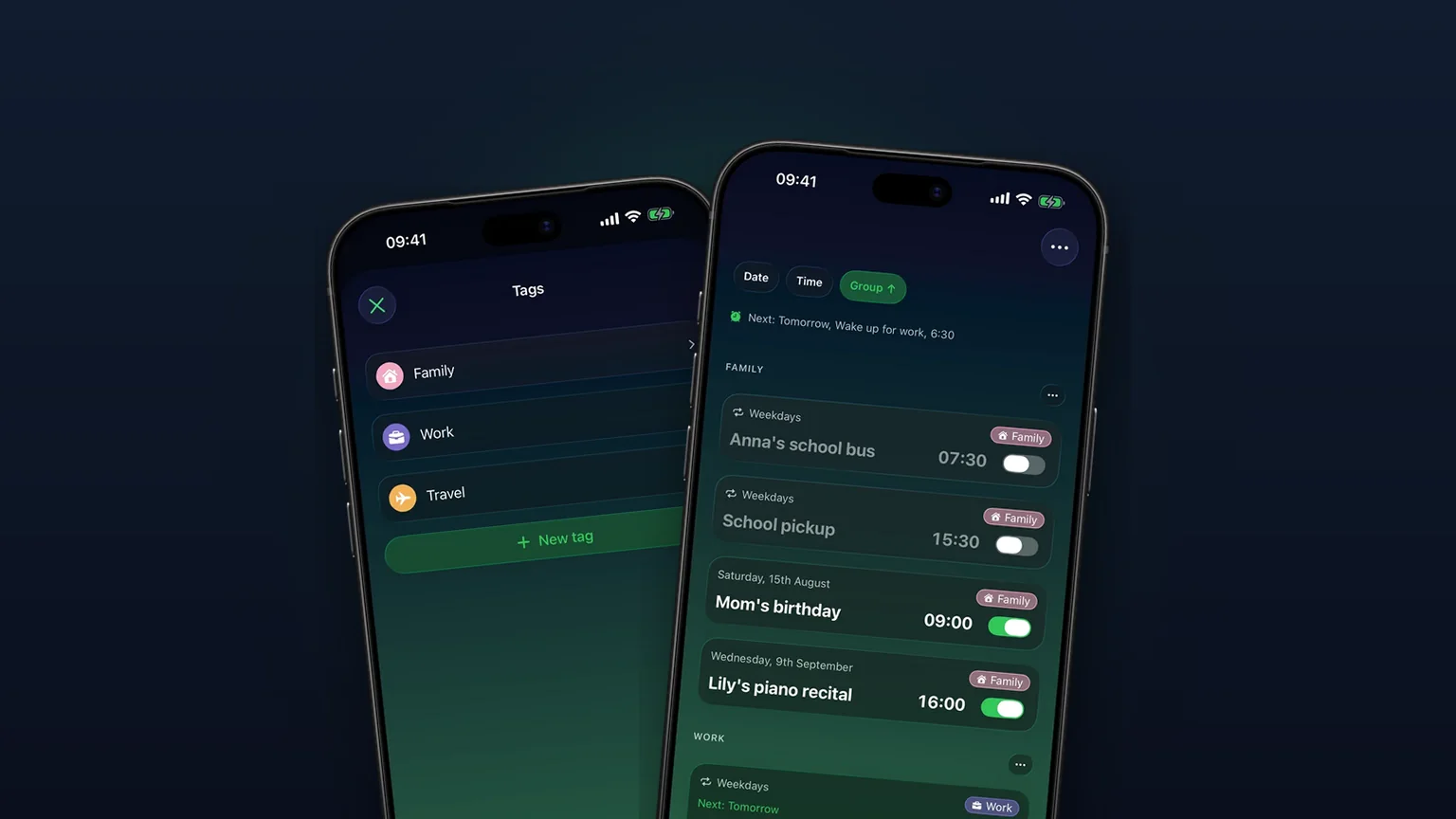
Alarm groups with color-coded tags
Color-coded groups like Work, Family or Travel, each with its own sound and snooze, plus switching and bulk edits for a whole group at once with unlimited access.
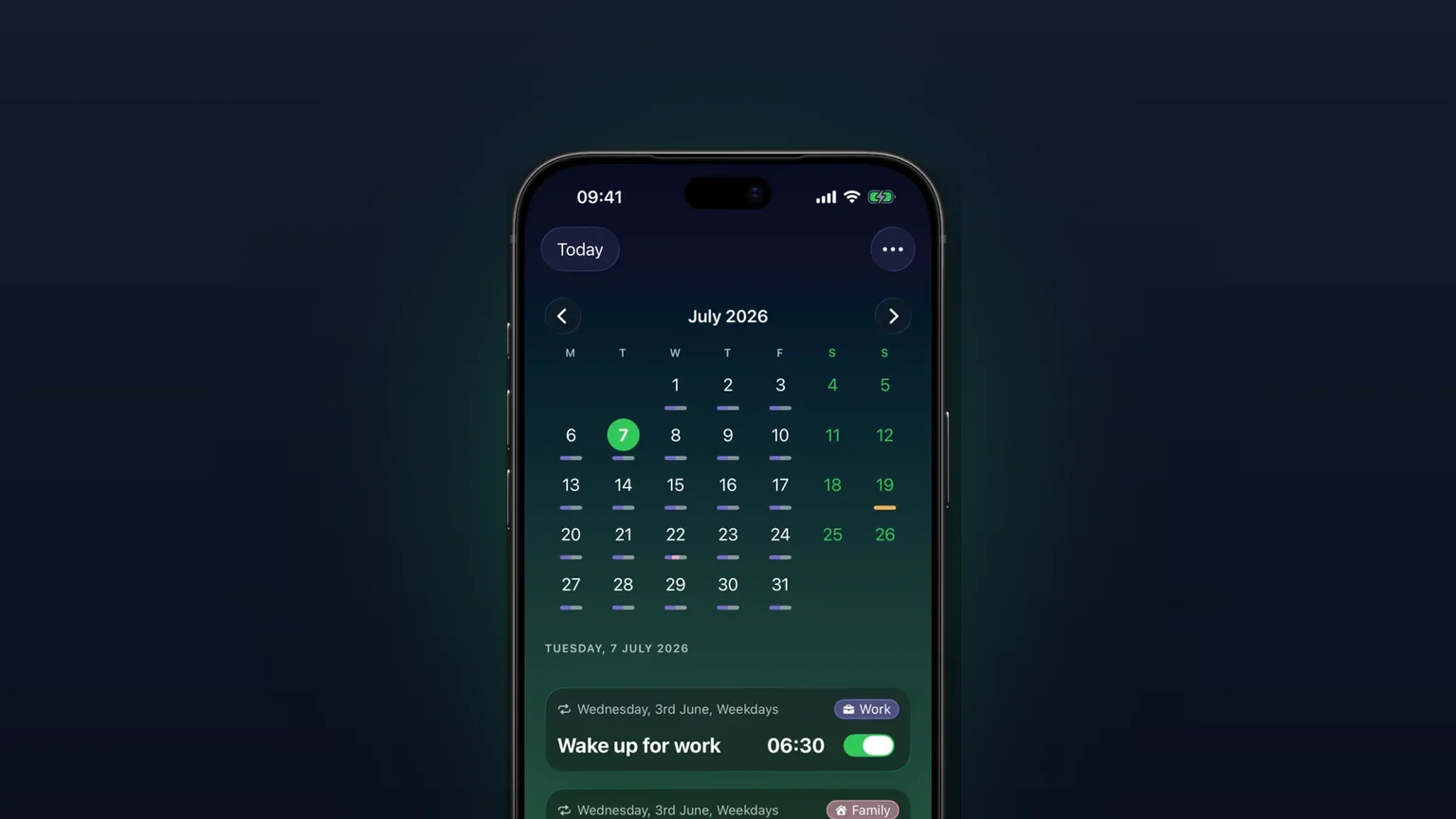
Calendar view of every alarm
Every alarm on a month grid, coloured by tag; tap a day to see, edit or skip what rings that day.

Your own alarm sounds, from any audio file
Import any audio file as an alarm sound, trimmed to 30 seconds, or pick one of 15 built-in tones, per alarm, per group or as your default.