Alarm groups with color-coded tags
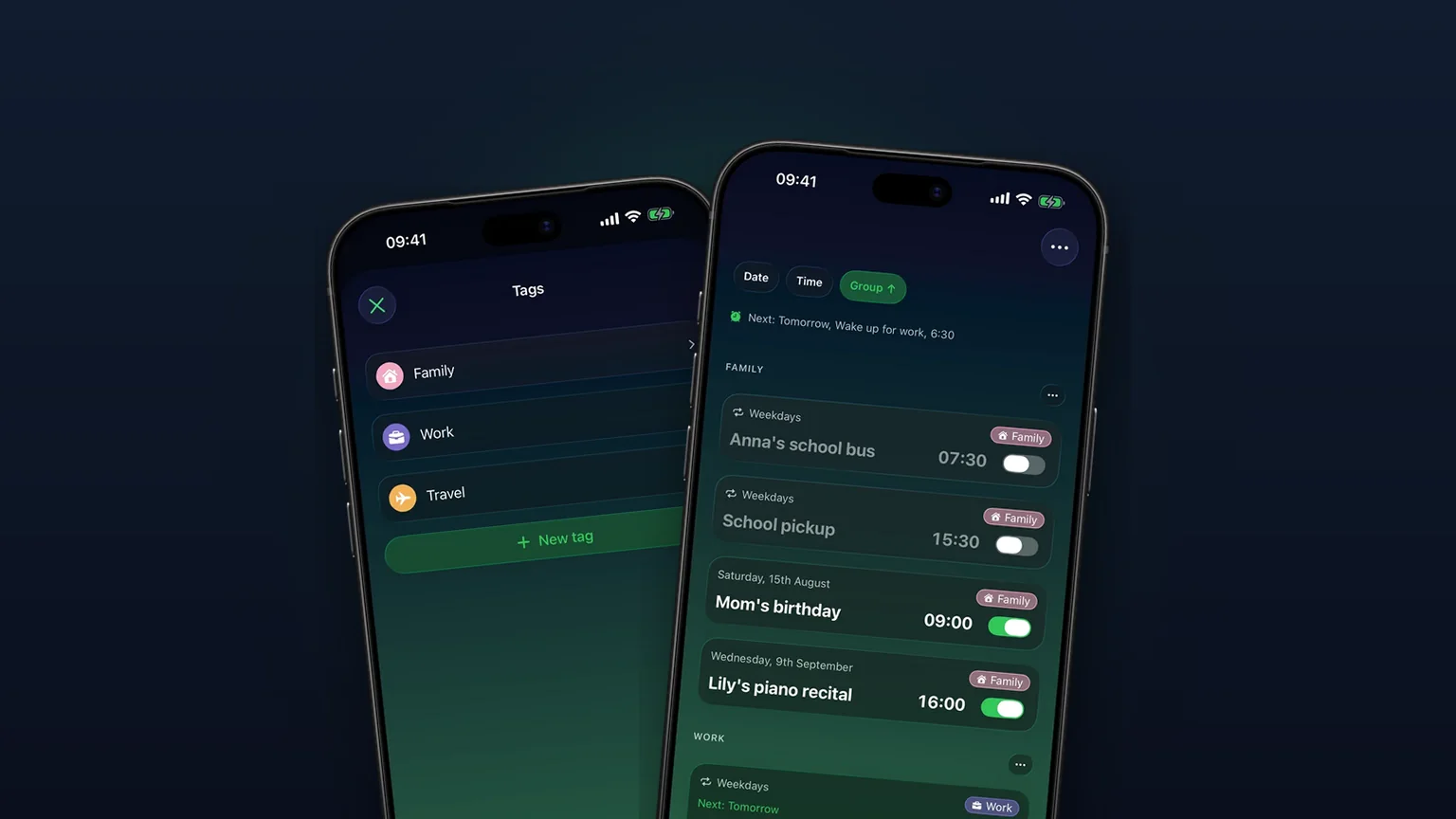
Put each alarm in a group like Work, Family or Travel, and the list sorts itself into labelled sections. Two taps turn a whole group off or back on, and a single sheet edits every alarm in it.
 Alarm Clock Planner is an iPhone appPoint your iPhone camera at the code to install it.
or text me the link
What it does
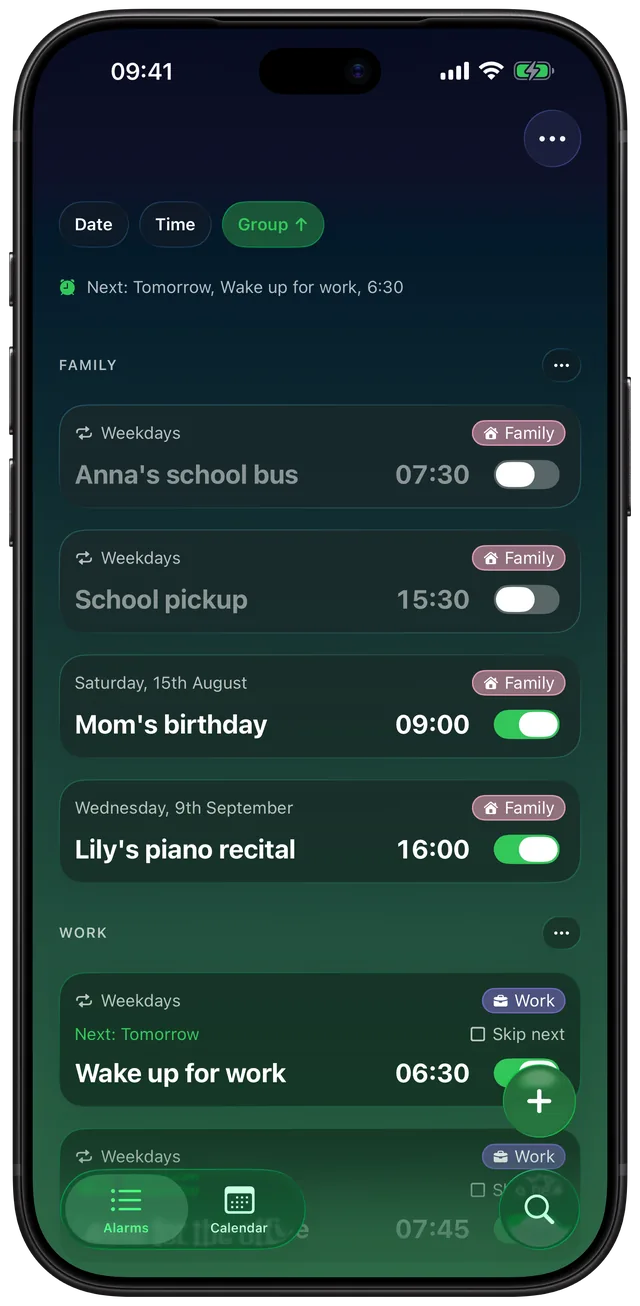
Every alarm in Alarm Clock Planner can belong to one group. A group has a name, one of 18 colors and one of 48 icons, and it shows as a colored chip on each alarm card. Sort the list by Group and the alarms fall into sections, each with its own button to switch the whole section on or off, edit it or delete it.
The built-in Clock app gives each alarm a time, Repeat, Label, Sound and Snooze, and the Label is a fine way to name one alarm. Apple's own steps for Clock alarms say nothing about groups, folders or acting on several alarms at once, so a long list stays one flat column you change alarm by alarm. Groups add that missing layer: the list explains itself at a glance, and a week of vacation is two taps instead of ten. For the general iPhone picture, including what you can do in Clock, see how to group and organize alarms on iPhone.
How it works
Create a group and put alarms in it
- Tap + to open the Add Alarm screen, or tap an existing alarm to edit it.
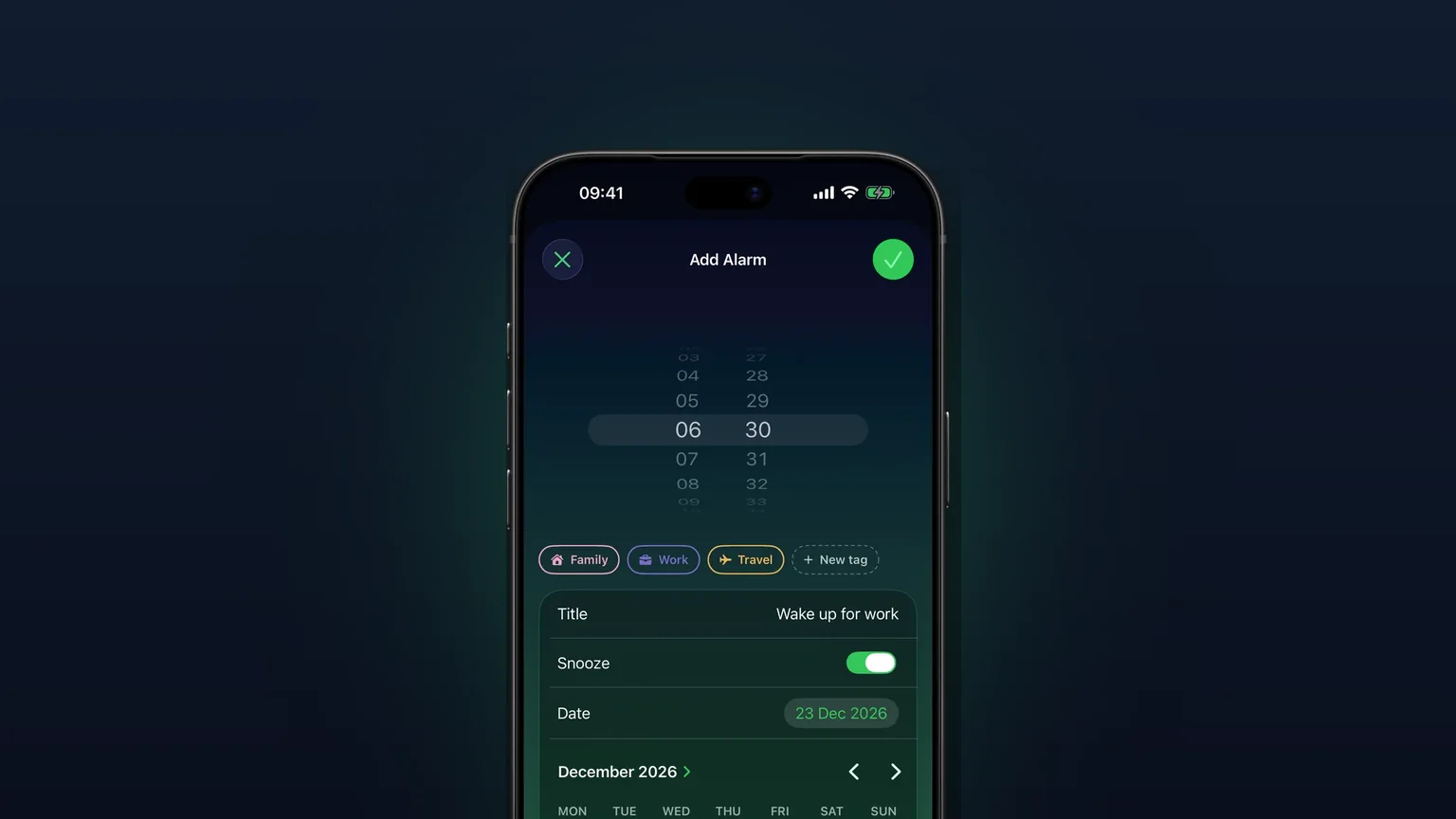
- Right under the time wheel, above the Title, Sound, Snooze and Date rows, is a row of group chips. Tap a chip to put the alarm in that group. Tap it again to take the alarm out.
- No group yet? Tap the dashed New group chip at the end of the row. The New Group sheet opens.
- Type a Name, then pick a color and an icon. Optionally set the group's Sound, Snooze length and Use default time (see Options).
- Tap the checkmark. The new group is created and already selected for the alarm you are editing.
- Save the alarm with its own checkmark.
If you picked uses like Work, Family or Travel during the first-run setup, matching starter groups are already there. You can rename, recolor or delete them like any other group.
Sort, switch and edit by group
- On the Alarms tab, tap the Group chip at the top. Sections appear in your group order, with Ungrouped always last. Tap Group again to reverse the group order.
- Tap the … button beside a section header. Four buttons open: an alarm icon, a pencil, a trash can and a close button.
- Tap the alarm icon to switch the group. If every alarm in it is on, they all go off. If any is off, they all come on.
- Tap the pencil to open Edit N alarms for the whole group, or the trash can to delete every alarm in it after a confirmation.
Manage your groups
- Open the More menu at the top right and tap Edit groups. The Groups list opens.
- Tap a group to change it, or tap New group at the bottom to add one.
- Long-press a group and drag it to change the order. The Group sort follows this order.
- Swipe left on a group and tap Delete to remove it.
Options
| Setting | Choices | What it changes |
|---|---|---|
| Name | Any text | The chip on each card and the section header. |
| Color | 18 colors | The chip, the icon and the group's marks on the Calendar tab. |
| Icon | 48 symbols | Shown on the chip, in the Groups list and on the alarm cards under each calendar day. |
| Sound | Default or any alarm sound, your own included | Every alarm in the group rings with it, unless the alarm has its own sound. |
| Snooze | Default, or 1, 3, 5, 9, 10, 15, 20 or 30 min | How long a snooze lasts for alarms in the group. |
| Use default time | Off, or a time plus a Snooze switch | Fills in the time and snooze when you pick the group on a new alarm. |
A few details worth knowing:
- Default means the setting in Settings. A group's sound beats Settings, and an alarm's own sound beats the group.
- Changing a group's sound re-sets every switched-on alarm in it, so the next ring already uses the new sound. A new snooze length applies from the next snooze.
- Use default time only fills fields you have not touched yet, and only on a new alarm. When you change the default on a group that already has alarms, the app asks Apply new defaults to existing alarms? Pick Apply to all to move them to the new time and keep each one's date, or Just save group to leave them as they are.
- Edit N alarms covers Time, Title, Snooze, Date and the group. A field the alarms do not share shows Multiple, and only the fields you change are saved, so the rest keep their own values. It refuses a change that would put any alarm in the past.
- Select alarms in the More menu lets you pick alarms from different groups, or tap a section's circle to select it all, then switch, edit or delete the selection from the bar at the bottom.
- Deleting a group keeps its alarms. They lose the chip and keep ringing.
When to use it
Vacation or a week off work
Wake-up, commute and standup alarms all sit in Work. Before you leave, sort by Group, open Work's … button and tap the alarm icon (if one Work alarm was already off, the first tap turns them all on, so tap again). Everything in Work goes quiet while Family and Medication keep ringing. When you are back, open the … button again and tap the alarm icon.
A family schedule in one place
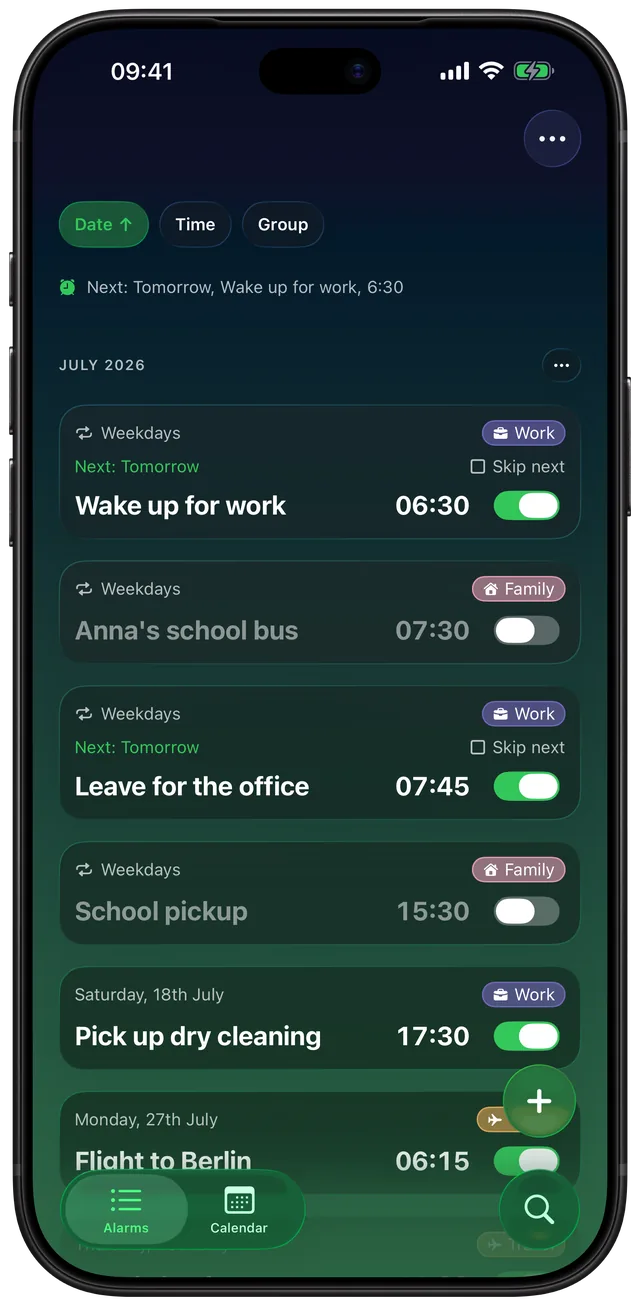
School bus, pickup, piano lessons and birthdays go in Family with one color. In Date sort the chips show whose alarm is next, and the Calendar tab marks each day in the group's color.
Medication that should never be missed
Give a Medication group a sound you never use for anything else and a 30 minute snooze. Every pill alarm you add to it picks both up, so you know what is ringing before you look. For more on snooze, see how to change the snooze time on iPhone.
Shift work that moves
Your early shifts now start an hour later. Set the Shifts group's default time to the new start and tap Apply to all, and every shift alarm in the group moves to the new time on its own date. Pair it with repeating alarms for rotas that repeat.
Trips and one-off events
A Travel group holds the airport alarm, the taxi and the check-out, each on its own future date. When the trip is over, delete the whole section in one go.
Limits
- One group per alarm. An alarm holds one group, not several tags at once. Groups cannot hold other groups.
- Switching a group on turns on every alarm in it. The switch does not remember which alarms you had off before. It flips the alarms one by one, so an alarm you kept off comes on with the rest.
- Bulk actions need the unlock. Creating groups, assigning them, sorting by Group and every group setting are free. The section … button and Select alarms appear only with unlimited access, and without a purchase you can have 3 upcoming alarms at a time.
- Groups are just for you. They are not shared with other people, and there are no shared alarms with friends or family.
- No per-group widget. The widgets show your next alarm across all groups, with its group icon.
- Snooze length per group, not per alarm. Each alarm can switch snooze on or off, but the length comes from its group or from Settings.
To pick a distinct ring for each group, see how to choose your own alarm sound on iPhone.
Frequently asked questions
Can you group alarms on iPhone?
Apple's steps for Clock alarms cover a time, Repeat, Label, Sound and Snooze, and mention no groups or folders. Alarm Clock Planner adds groups: each alarm can carry a colored group like Work or Family, and sorting by Group splits the list into sections.
How do I turn off all my alarms at once?
In Alarm Clock Planner, open Select alarms from the More menu, tap Select all, then tap the alarm icon in the bar at the bottom. If every alarm is on, they all go off; if any is off, the first tap turns them all on and a second tap turns them all off. To switch off just one group, sort by Group and use the alarm icon behind that section's button. Both need unlimited access.
How do I turn multiple alarms back on?
Use the same alarm icon. If any alarm in the group or selection is off, one tap on that icon turns them all on. It does not remember which ones were off before, so check any alarm you meant to keep off.
Can each group have its own alarm sound?
Yes. Open Edit groups, tap the group and pick a Sound, including sounds you imported. Every alarm in the group rings with it, unless that alarm has its own sound set.
What happens to my alarms if I delete a group?
They stay and keep ringing. Deleting a group only removes the group and its chip from those alarms. To delete the alarms themselves, use the trash button on the group's section instead.
Can I share a group of alarms with friends?
No. Groups are just for you and are not shared with other people. Each person needs to set their own alarms.
Sources
Sort your alarms, then switch a whole group at once
Get Alarm Clock Planner on the App StoreMore features
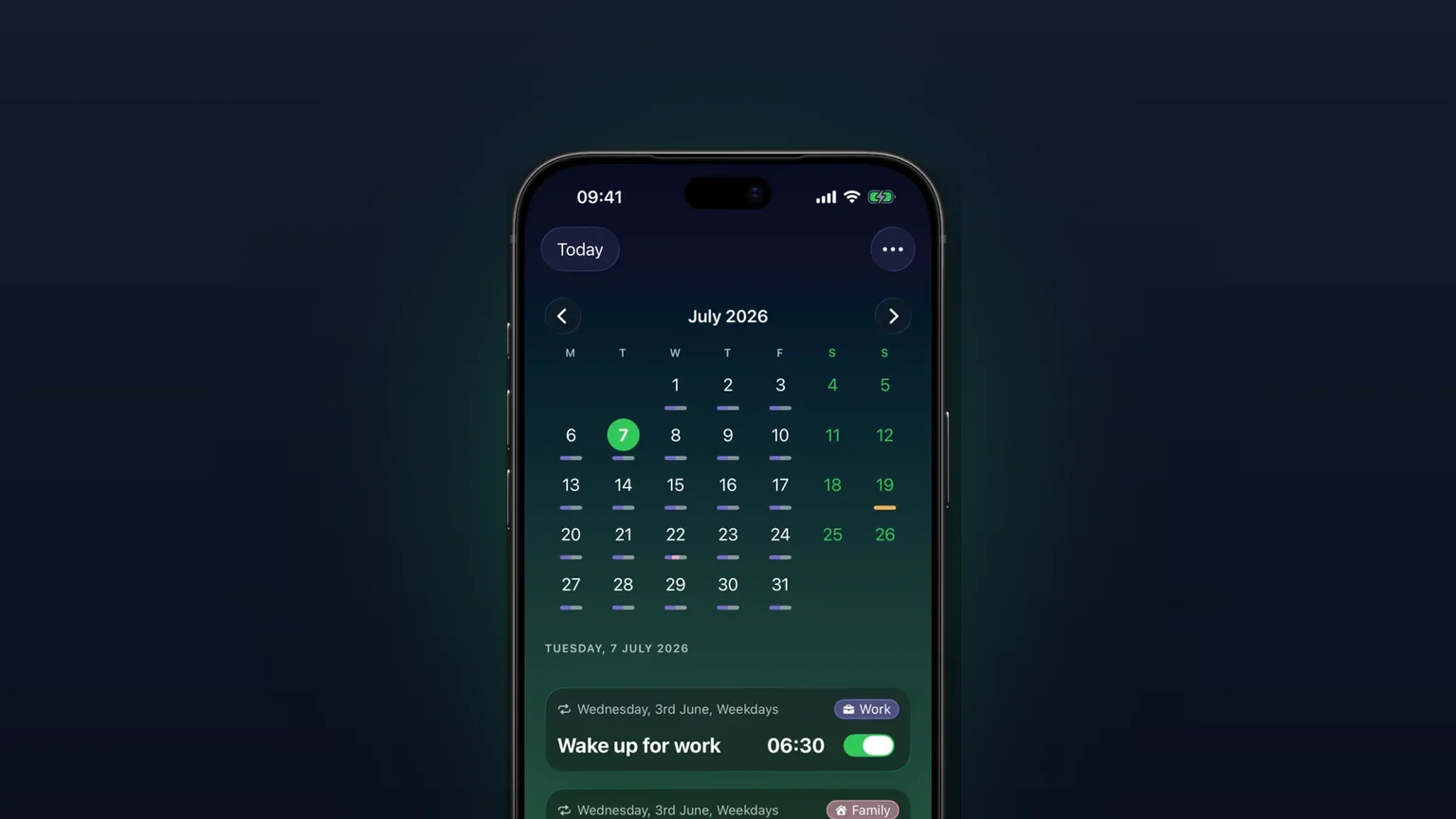
Calendar view of every alarm
Every alarm on a month grid, coloured by tag; tap a day to see, edit or skip what rings that day.

Your own alarm sounds, from any audio file
Import any audio file as an alarm sound, trimmed to 30 seconds, or pick one of 15 built-in tones, per alarm, per group or as your default.
Alarms for any future date
Pick any future day on a calendar; a one-off alarm rings once on that date, then switches itself off.