How to Set a Custom Alarm Sound on iPhone
Waking up to a sound you chose beats waking up to Radial. Getting your own audio into the Clock app is famously awkward. Here is every way that works, from free to one tap.
 Alarm Clock Planner is an iPhone appPoint your iPhone camera at the code to install it.
or text me the link
Quick answer: The Clock app only plays tones and ringtones, plus songs from your music library. To use your own sound for free, turn it into a ringtone with GarageBand: import the audio, trim it to 30 seconds, then Share as Ringtone, and it appears in the alarm's Sound list. You can also buy a tone in the Tone Store. Or skip the conversion: Alarm Clock Planner imports any audio file straight from the Files app, keeps its own copy so it plays every time, and trims it to 30 seconds for you.
How to change the alarm sound on iPhone
For one of the built-in tones, the Clock app is enough:
- Open Clock and tap Alarms.
- Tap the alarm you want to change, or the add button for a new one.
- Tap Sound and pick a tone (Radial is the default), a ringtone, or a song.
- Go back and save the alarm.
Each alarm keeps its own sound, so a work alarm and a weekend alarm can ring differently. The Sound list holds tones and ringtones only, so any custom sound has to become a ringtone first. The next section shows how.
Make a custom alarm sound for free with GarageBand
Apple's free GarageBand app turns any audio file on your iPhone into a ringtone, and every ringtone shows up as an alarm sound. It works for a song file, a sound clip, or a voice recording:
- Open GarageBand, start a new song with any instrument, and switch to Tracks view.
- Tap the Loops button. For a file, open the Files tab and tap Browse items from the Files app. For a song in your library, open the Music tab.
- Drag the audio into the tracks.
- Trim it to the part you want to wake up to, 30 seconds at most.
- Go to My Songs, press and hold the project, tap Share, and choose Ringtone. Give it a name and export.
- In Clock, edit the alarm, tap Sound, and pick your new ringtone near the top of the list.
It costs nothing, but it takes a few minutes per sound, and the steps move around between GarageBand versions. Songs from an Apple Music subscription are protected and show up dimmed, so they cannot become ringtones.
Use a voice recording as your alarm
A recorded message from your kid, or your own voice telling you to get up, is a custom alarm sound like any other. In Voice Memos, tap the recording, tap the More button, and choose Save to Files. From there, make it a ringtone with the GarageBand steps above, or import the file directly into Alarm Clock Planner as described below.
Buy an alarm tone in the Tone Store
If you would rather pay than convert, open Settings, Sounds & Haptics, Ringtone, and tap Tone Store. Tones you buy there appear in every alarm's Sound list. The catch is that you can only choose from what the store sells, not from your own audio.
Use a song as your alarm
The Clock app can also play a song from your music library: edit the alarm, tap Sound, then Pick a song. The song always starts from its first second, and if it is not downloaded to the phone when the alarm goes off, the alarm rings with the default tone instead, a problem people have hit for years. Bought the song on iTunes? The iTunes song guide covers all three ways to make it ring, including how to start at the chorus.
Skip the conversion: set any audio file as an alarm
In Alarm Clock Planner the sound picker has an Add custom sound option at the bottom:
- When creating or editing an alarm, open the sound list.
- Tap Add custom sound and pick any audio file from the Files app.
- The file is trimmed to 30 seconds automatically, and a local copy is saved, so the alarm never depends on streaming and plays the same sound every single time.
- Your sound now sits in the list next to the 19 built-in tones, ready to assign.
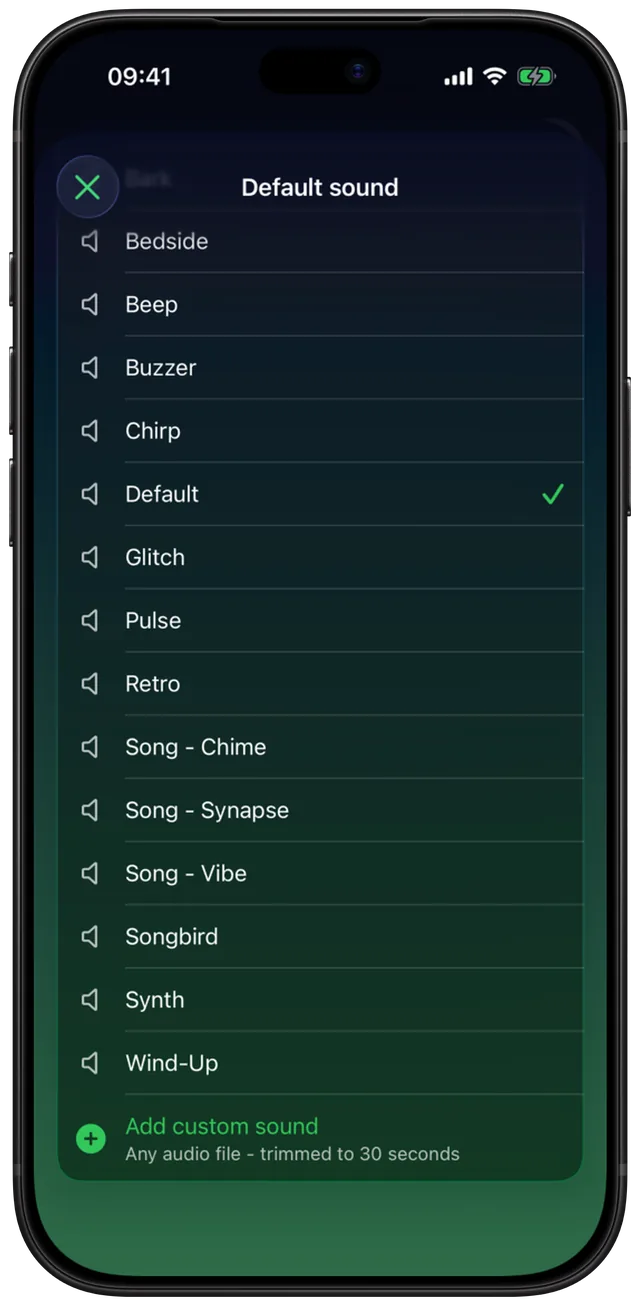
If the sound exists as a file, it can be an alarm: an M4A you exported, a voice memo you saved out, a song you bought on iTunes, an MP3, a clip a friend sent you. It is imported as audio, not as a ringtone, so there is no GarageBand step and nothing to buy.
One sound per group, or per alarm
Sounds cascade: set one per alarm, or once per group, or as your app-wide default. Give the Family group a gentle tone and Work something with more edge, and you will know what is ringing before your eyes open. Groups are covered in the organizing guide.
Choose something you can stand at 6 AM
One practical warning from everyone who has tried it: a sound you love at noon is a sound you will hate by Thursday if it drags you out of deep sleep every day. Save the favorites for one-off alarms, and give the daily wake-up something neutral.