One-tap nap alarms on iPhone
Hold the + button and pick 10, 15, 20 or 30 minutes, or nap until the next full hour. The alarm is set before you put the phone down.

 Alarm Clock Planner is an iPhone appPoint your iPhone camera at the code to install it.
or text me the link
What one-tap nap alarms do
Press and hold the + button in Alarm Clock Planner and a menu opens with five nap choices: 10, 15, 20 or 30 minutes, or "Nap till" the next full hour. Tap one and a single alarm is scheduled. There is no time picker, no label to type and no sheet to close.
The built-in Clock app can do naps too: you set a timer or create an alarm and pick the time yourself. That works, but you have to do the sum ("it is 14:07, so 14:27"), and the alarm stays in your list after it rings unless you delete it. A nap here is one-shot by design: it rings once and then removes itself from your list. Adding a nap also never touches your regular alarms or counts against the free limit (see limits).
For the general iPhone methods, including the timer route, read how to set a nap alarm on iPhone. This page covers what the app adds.

How to set a nap, step by step
- Open Alarms (or the Calendar tab, which has the same button and the same menu).
- Press and hold the + button at the bottom right. A quick tap still opens the normal Add alarm sheet.
- Tap 10 minute nap, 15 minute nap, 20 minute nap, 30 minute nap, or the top row, Nap till 11:00 (the label shows the next full hour in your own time format).
- A small capsule next to the button reads "Alarm scheduled for" and the time. It disappears after 3 seconds.
- Lie down. The alarm rings at that time with your default alarm sound.
The first time you add a normal alarm and close the sheet, the app shows a one-time hint that explains the hold gesture with a picture of this menu. It never appears again once you dismiss it, or once you have set a nap from the Alarms tab or with Siri.
Fixed naps count from the next minute. Tap "15 minute nap" at 21:00:35 and the alarm rings at 21:16, so you get the full 15 minutes before the alarm. "Nap till" rings exactly on the hour: tapped at 10:01 it rings at 11:00, tapped at 10:58 it rings two minutes later.
Every nap option
| Choice | Rings at | Good for |
|---|---|---|
| 10 minute nap | Next minute + 10 min | A quick reset |
| 15 minute nap | Next minute + 15 min | A short nap with a buffer |
| 20 minute nap | Next minute + 20 min | A short power nap |
| 30 minute nap | Next minute + 30 min | A longer midday rest |
| Nap till (next full hour) | The coming :00 | Waking on the hour |
These five are fixed. The app has no custom nap length in the menu. If you want a different length, add a regular alarm with the plus button's tap, or ask how long you should sleep with the nap calculator.
Around the nap itself:
- Sound: a nap uses your default alarm sound from Settings, including one of your own imports (see your own alarm sounds).
- Siri and Shortcuts: the app includes a "Take a Nap" action with the same five choices. Say "Take a 20 minute nap in Alarm Planner" or add the action to a shortcut.
- Cancel: a nap shows in your alarm list as its own row with a bed icon and a cancel button instead of a switch. Tap it to remove the nap before it rings.
- Recent alarms: after a nap rings, it moves to Recent alarms, which keeps the last 10 alarms and naps. Tap Set again to start a nap of about the same length from now.
- Widget: naps are hidden from the Next alarm widget by default. You can turn them on in Settings.
When a nap alarm fits
The after-lunch dip
You sit on the sofa at 13:00 and want 20 minutes. Hold, tap, close your eyes. You never open a time picker, so the nap starts a minute sooner.
Waking on the hour before a call
A call starts at 15:00 and it is 14:12. "Nap till 15:00" is one tap, with no arithmetic. Add a normal alarm if you want a few minutes of buffer.
Naps that should not repeat
An alarm you create in the Clock app and forget stays in your list. A nap here deletes itself after it rings, so your list holds only alarms you meant to keep. See the calendar view for how everything else looks.
Hands-free before a night shift or a flight
Ask Siri for a 30 minute nap while you are already getting comfortable. The alarm is the same one the + menu would set. If the phone is on Silent, check how alarms ring on Silent first.
Repeating the same nap
If you take a 20 minute nap most afternoons, open Recent alarms and use Set again, or hold the + button. Either way it takes seconds.
What nap alarms do not do
- No custom length. The menu offers 10, 15, 20, 30 minutes and the next full hour. Nothing else.
- No sleep tracking. It does not detect when you fall asleep or choose a light-sleep moment. It is a plain one-shot alarm at the time you tapped.
- No repeat. A nap rings once. For a daily nap, use a repeating alarm instead.
- Needs alarm permission. If alarm access is off, the app shows its permission alert and sets nothing.
- The 50 alarm ceiling still applies. iOS allows 50 scheduled alarms for the app. A nap does not count toward the free plan's 3 regular alarms, but if 50 are already scheduled, the app shows an alert and sets nothing.
- No label or sound choice per nap. It is always titled "Nap" and uses your default sound.
Alarm Clock Planner needs iOS 26.2 or later, and Apple's current release is iOS 27.
Frequently asked questions
How do I set a nap alarm on iPhone with one tap?
In Alarm Clock Planner, press and hold the + button on the Alarms or Calendar tab. Choose 10, 15, 20 or 30 minute nap, or the top row to nap until the next full hour. The alarm is scheduled at once and a short confirmation shows the ring time.
Is there a 20 minute power nap alarm?
Yes. "20 minute nap" is one of the five choices in the hold menu. It counts from the next minute, so a tap at 14:00:30 rings at 14:21. Other lengths are fixed at 10, 15 and 30 minutes.
Does the nap alarm ring again tomorrow?
No. A nap is a one-shot alarm. After it rings it leaves your alarm list and appears in Recent alarms, where Set again starts a nap of about the same length from now.
Can I set a quick nap timer with Siri?
Yes. The app includes a Take a Nap action with the same five choices, so you can say something like "Take a 20 minute nap in Alarm Planner". It follows the same rules as the + menu, including the alarm permission and the 50 alarm limit.
Are nap alarms free?
Yes. Naps are free and do not count toward the 3 regular alarms of the free plan. They still need alarm permission and room under iOS's 50 alarm limit.
Can I choose my own nap length?
Not in the nap menu, which offers 10, 15, 20 and 30 minutes or the next full hour. For another length, add a normal alarm at the time you want.
Sources
Set your next nap in one tap
Get Alarm Clock Planner on the App StoreMore features
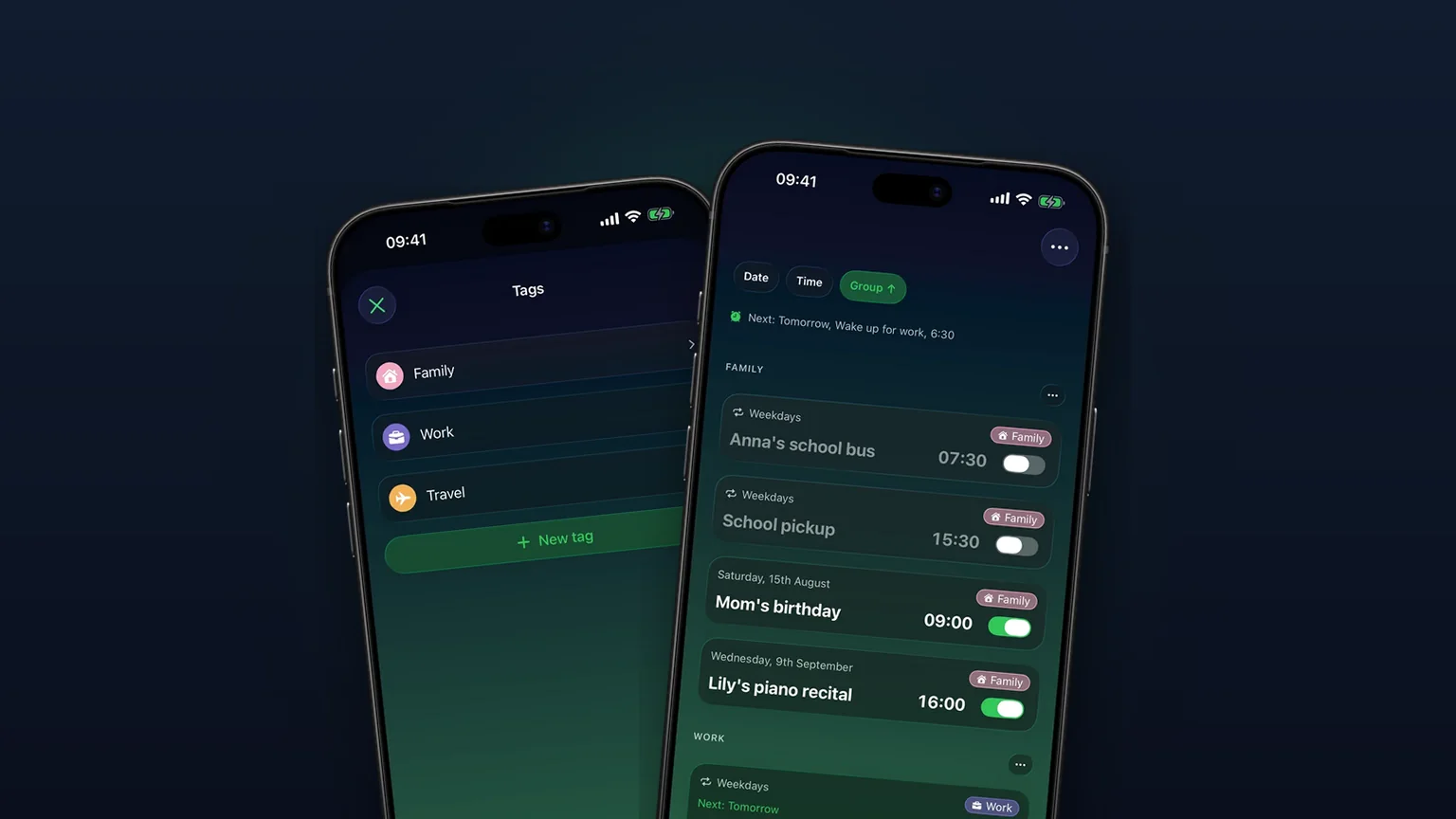
Alarm groups with color-coded tags
Color-coded groups like Work, Family or Travel, each with its own sound and snooze, plus switching and bulk edits for a whole group at once with unlimited access.
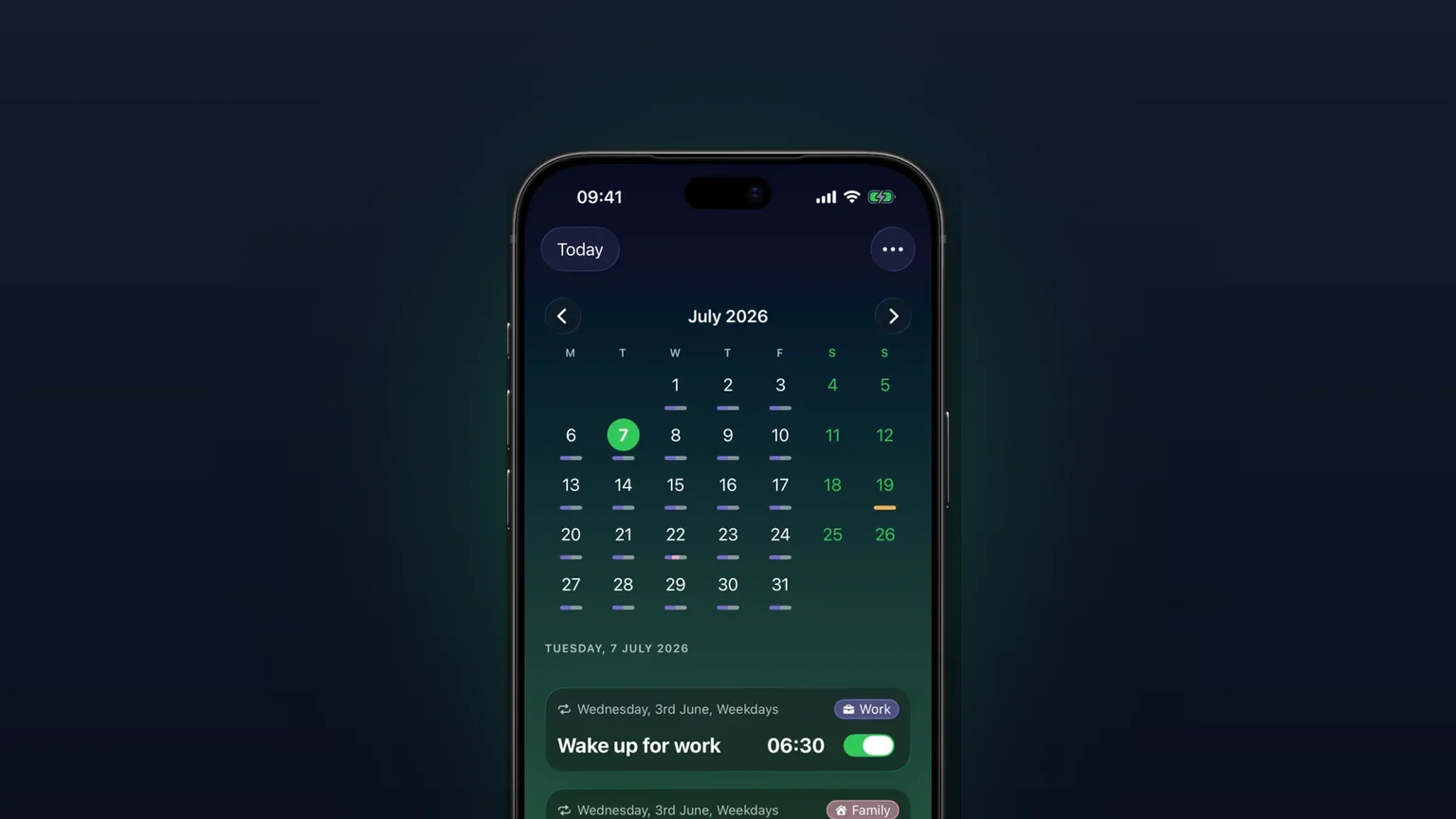
Calendar view of every alarm
Every alarm on a month grid, coloured by tag; tap a day to see, edit or skip what rings that day.

Your own alarm sounds, from any audio file
Import any audio file as an alarm sound, trimmed to 30 seconds, or pick one of 15 built-in tones, per alarm, per group or as your default.