Custom snooze length, limit and tag rules
Pick how long snooze lasts, how many times you can use it, and give a tag of alarms its own rules. A pill reminder and a wake-up alarm do not need the same snooze.
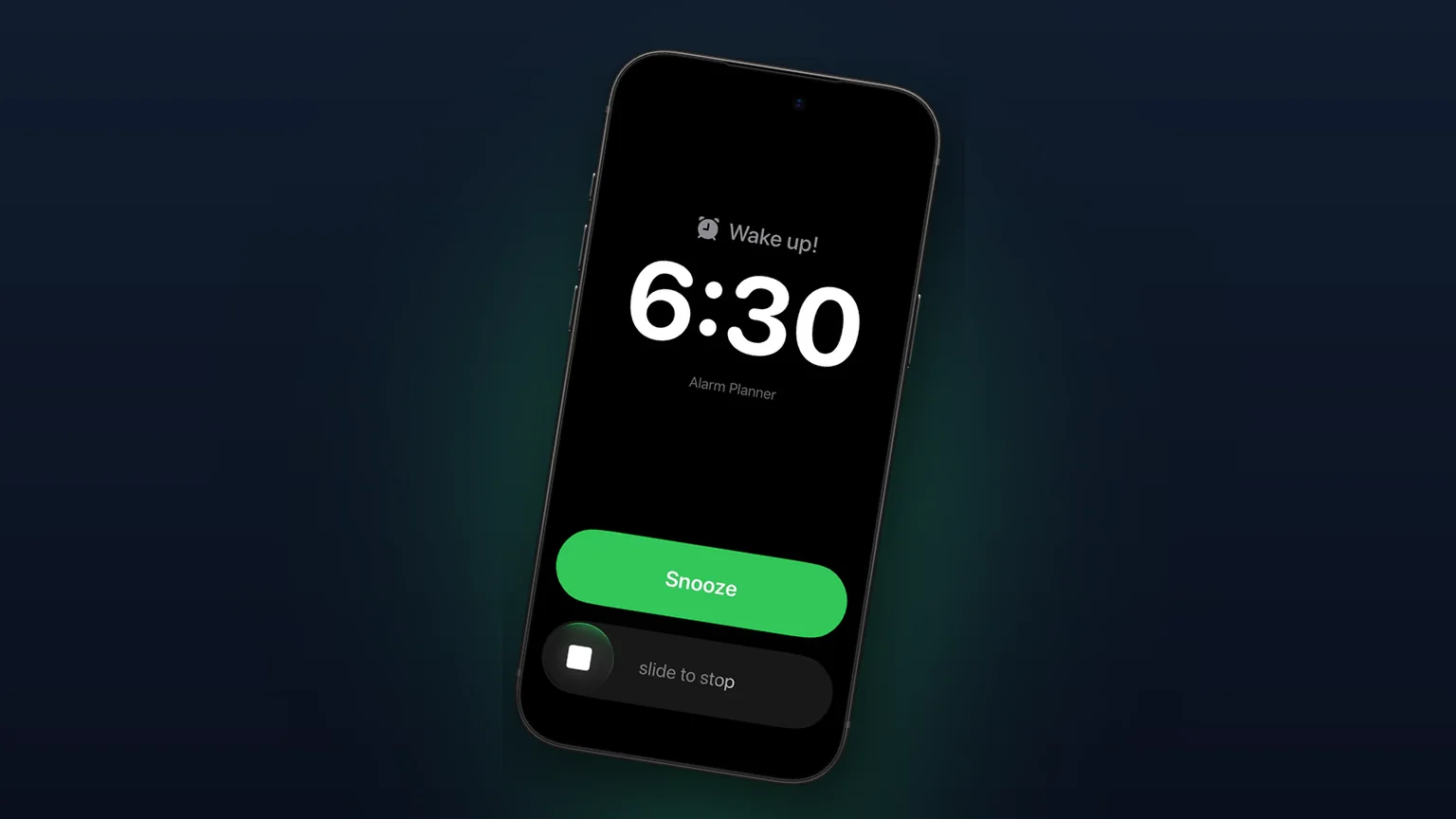
 Alarm Clock Planner is an iPhone appPoint your iPhone camera at the code to install it.
or text me the link
What custom snooze does
Alarm Clock Planner lets you choose the snooze length from eight values: 1, 3, 5, 9, 10, 15, 20 or 30 minutes. It also lets you limit how many times one alarm can be snoozed (1, 2, 3 or unlimited), and a tag can override both or switch snooze off for every alarm in it.
The built-in Clock app used a fixed 9 minutes for years. Since iOS 26 it has a per-alarm Snooze Duration, which is a real improvement, and the snooze time guide covers how to use it. What Clock does not do is limit the number of snoozes or set snooze rules for a whole group of alarms at once. Those two gaps are what this feature fills.
How to set it up
Your default for every alarm
- On the Alarms tab, tap the ... menu, choose Settings and find the General card.
- Tap Snooze duration and pick a length. The default is 9 min.
- Tap Snooze limit and pick Unlimited, 1, 2 or 3. The default is Unlimited.
The change reaches existing alarms right away. The app reads these values when you tap Snooze, not when the alarm is created, so you never have to re-save your alarms.
Different rules for one tag
- On the Alarms tab, tap the ... menu, choose Edit groups, then tap a group or New group. The app calls a tag a group.
- In the Snooze row choose Off, Default or a length.
- Below it, set the tag's Snooze limit: Default, Unlimited, 1, 2 or 3.
The alarm groups feature explains tags in full. Alarms in the tag follow its snooze rules, so a medication tag can snooze for 30 minutes while your wake-up alarm snoozes for 5.
One alarm without snooze
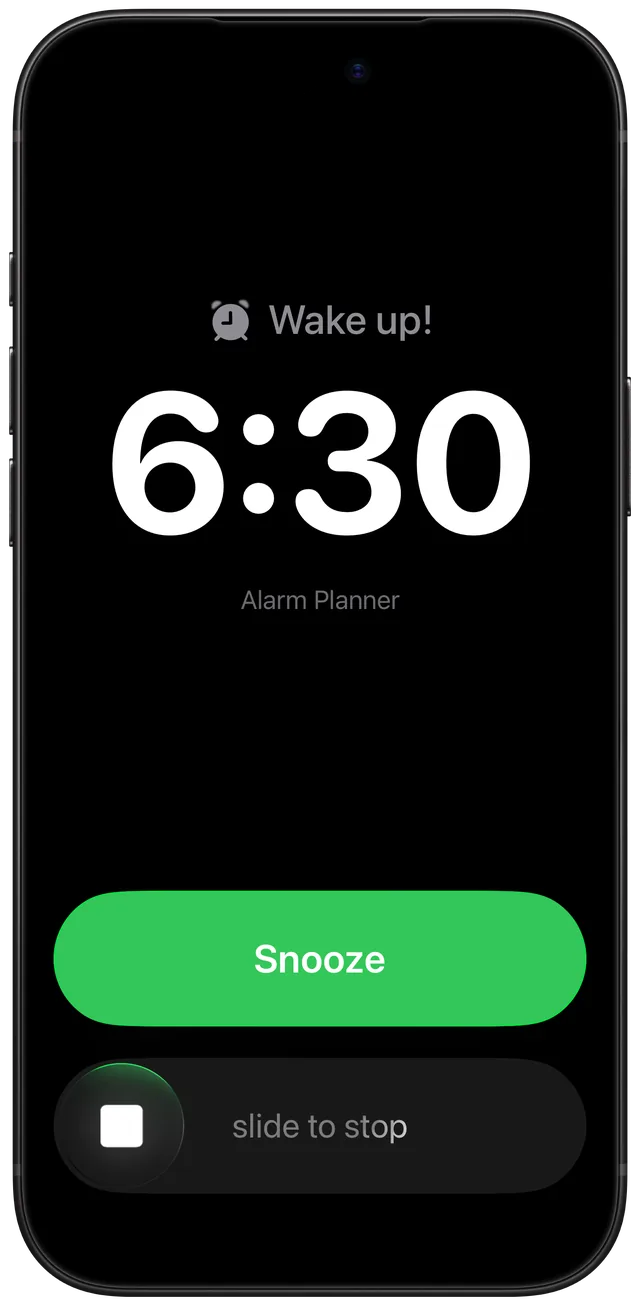
In the alarm editor, turn the Snooze toggle off. The ringing alert then has no Snooze button. With Premium, you can also change that toggle for several alarms at once from bulk edit.
Every option
| Setting | Where | Choices |
|---|---|---|
| Snooze duration | Settings, General | 1, 3, 5, 9, 10, 15, 20, 30 min (default 9) |
| Snooze limit | Settings, General | Unlimited, 1, 2, 3 (default Unlimited) |
| Snooze | Tag editor | Off, Default, or any of the eight lengths |
| Snooze limit | Tag editor | Default, Unlimited, 1, 2, 3 |
| Snooze toggle | Alarm editor, bulk edit | On or off for that alarm |
A tag set to Default inherits the Settings value. A tag set to Off wins over the alarm's own toggle: the editor shows the toggle off and locked, with the note "Off for this group". The alarm's own setting stays untouched, so moving the alarm out of the tag brings it back.
Each snooze appears in your alarm list as its own pending row, labelled "Snooze:" and the alarm's title, so you can see when the next ring is due and cancel it. After you reach the limit, the next ring has no snooze action. The count starts over once more than twice the snooze length has passed since your last snooze, so tomorrow's alarm begins fresh.
When to use it
Stop the 9 minute spiral
Set the limit to 2 and the length to 5. You get two short nudges, then the alarm stops offering snooze. The decision is made the night before, when you are awake.
Medication twice a day
A pill alarm that you want a gentle second reminder for needs a long gap, not a short one. Put those alarms in a tag with a 30 minute snooze and a limit of 3.
Alarms that must not snooze
A flight, a school run or a meeting with a fixed start does not benefit from "five more minutes". Turn snooze off for the tag, and every alarm in it rings until you stop it. This pairs well with a flight alarm.
Testing a new alarm
Set the length to 1 minute while you check that an alarm rings the way you expect, then set it back. The change applies instantly.
A gentle weekend
Leave the weekday tag strict and put the weekend alarms in a tag with a 15 minute snooze and no limit. One setting per tag, no per-alarm fiddling.
What it does not do
- Not a free-form number. You choose from eight lengths. A 7 minute or 12 minute snooze is not available.
- No per-alarm length or limit. Length and limit live in Settings and on tags. A single alarm can only turn snooze on or off. To give one alarm its own length, put it in its own tag.
- The limit tops out at 3. Beyond that the choice is Unlimited.
- One chain per alarm. Snoozing a snooze ring extends the original alarm's chain and counts toward its limit. At most one pending snooze exists per alarm.
- Needs alarm permission. If alarms are not allowed for the app in iOS Settings, the General card shows a prompt to fix that instead of the snooze rows.
If you want to see how snooze fits with alarms that ring on Silent, that page covers the other half of a reliable wake-up.
Frequently asked questions
How do I change the snooze time on my iPhone alarm?
In Alarm Clock Planner, open Settings, find the General card and tap Snooze duration. Pick 1, 3, 5, 9, 10, 15, 20 or 30 minutes. In the built-in Clock app, open an alarm and use its Snooze Duration setting, available from iOS 26.
What does snooze duration mean on iPhone?
Snooze duration is how long the iPhone waits after you tap Snooze before the alarm rings again. It used to be fixed at 9 minutes. Alarm Clock Planner also starts at 9 min and lets you change it.
Can I set a different snooze time for different alarms?
Yes, through tags. Each tag can have its own snooze length, limit, or snooze turned off, and its alarms follow those rules. A single alarm outside a tag uses the Settings values.
Can I limit how many times I snooze?
Yes. Snooze limit offers Unlimited, 1, 2 or 3, in Settings and per tag. After the limit, the next ring has no Snooze action, so you have to get up.
Do I need to re-save my alarms after changing snooze length?
No. The app reads the length and limit when you tap Snooze, so a change in Settings or on a tag applies to existing alarms immediately.
Can I turn snooze off completely?
Yes. Turn off the Snooze toggle in the alarm editor for one alarm, or set a tag's Snooze to Off to remove the Snooze button from every alarm in that tag.
Sources
Set your own snooze rules
Get Alarm Clock Planner on the App StoreMore features
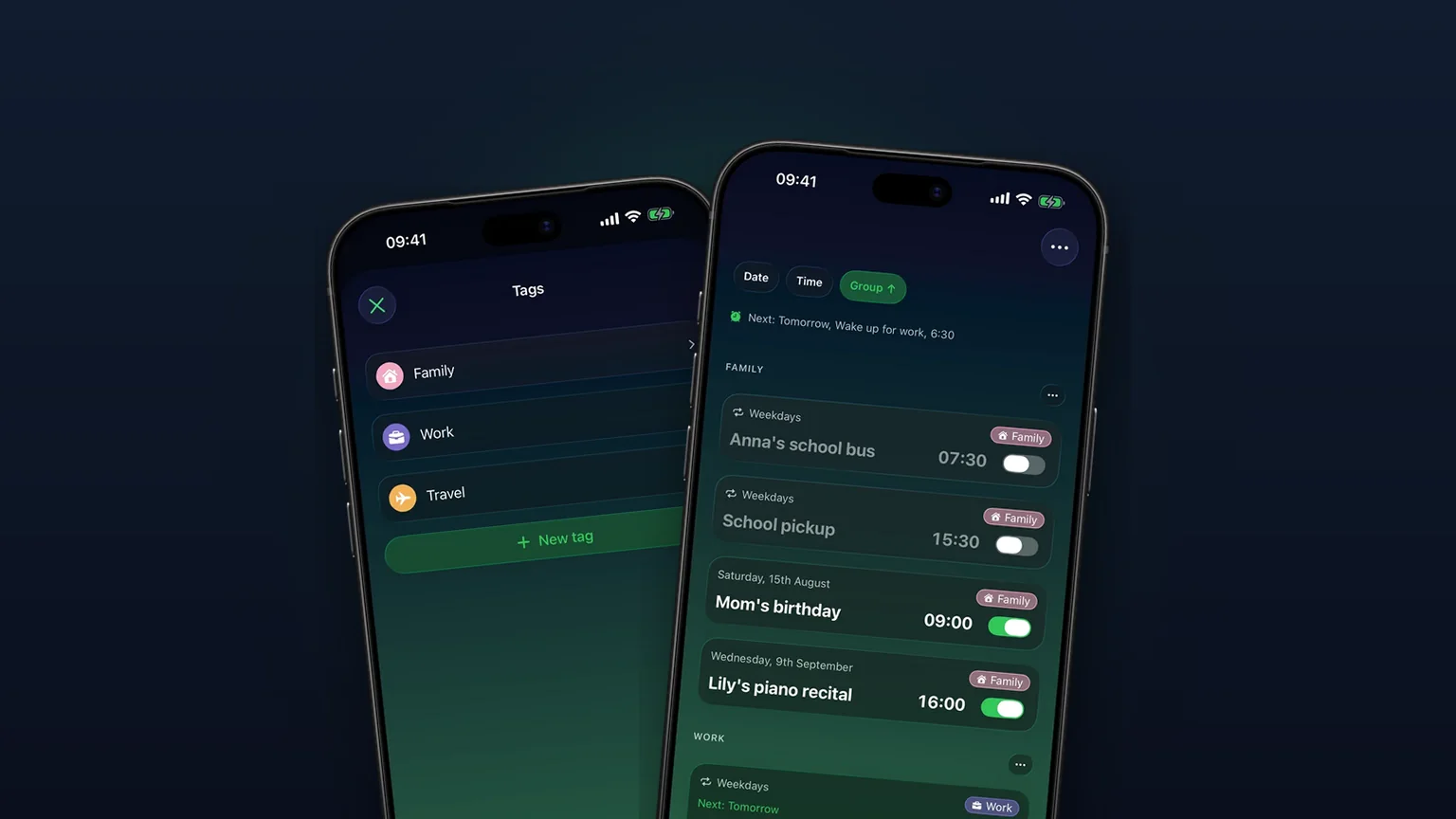
Alarm groups with color-coded tags
Color-coded groups like Work, Family or Travel, each with its own sound and snooze, plus switching and bulk edits for a whole group at once with unlimited access.
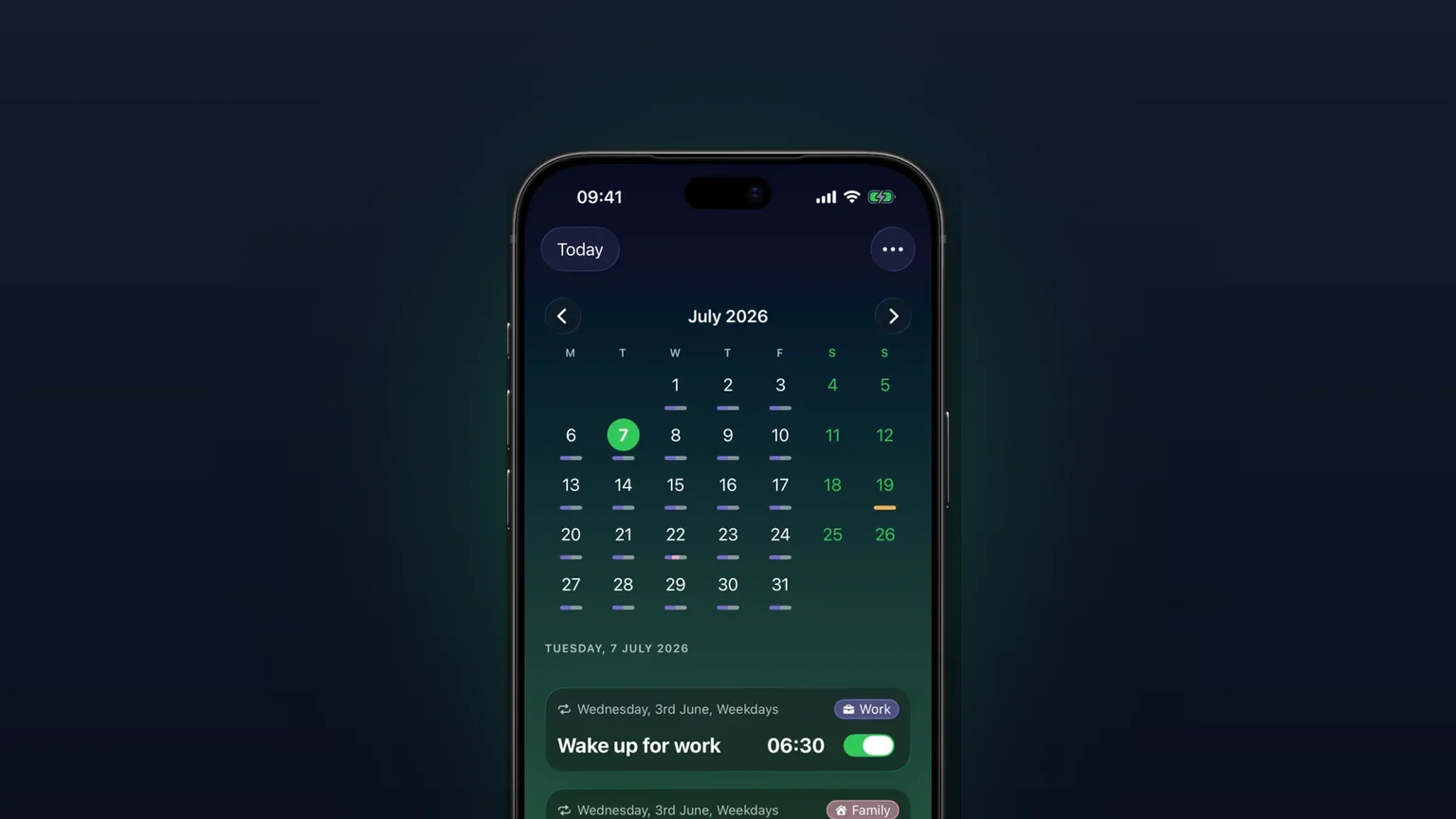
Calendar view of every alarm
Every alarm on a month grid, coloured by tag; tap a day to see, edit or skip what rings that day.

Your own alarm sounds, from any audio file
Import any audio file as an alarm sound, trimmed to 30 seconds, or pick one of 15 built-in tones, per alarm, per group or as your default.