Themes and app icons: 23 looks and 6 home screen icons
Alarm Clock Planner has 23 color themes, 14 dark and 9 light, and 6 home screen icons. Three themes and the default icon are free, the rest come with Premium.
 Alarm Clock Planner is an iPhone appPoint your iPhone camera at the code to install it.
or text me the link
What themes and app icons do
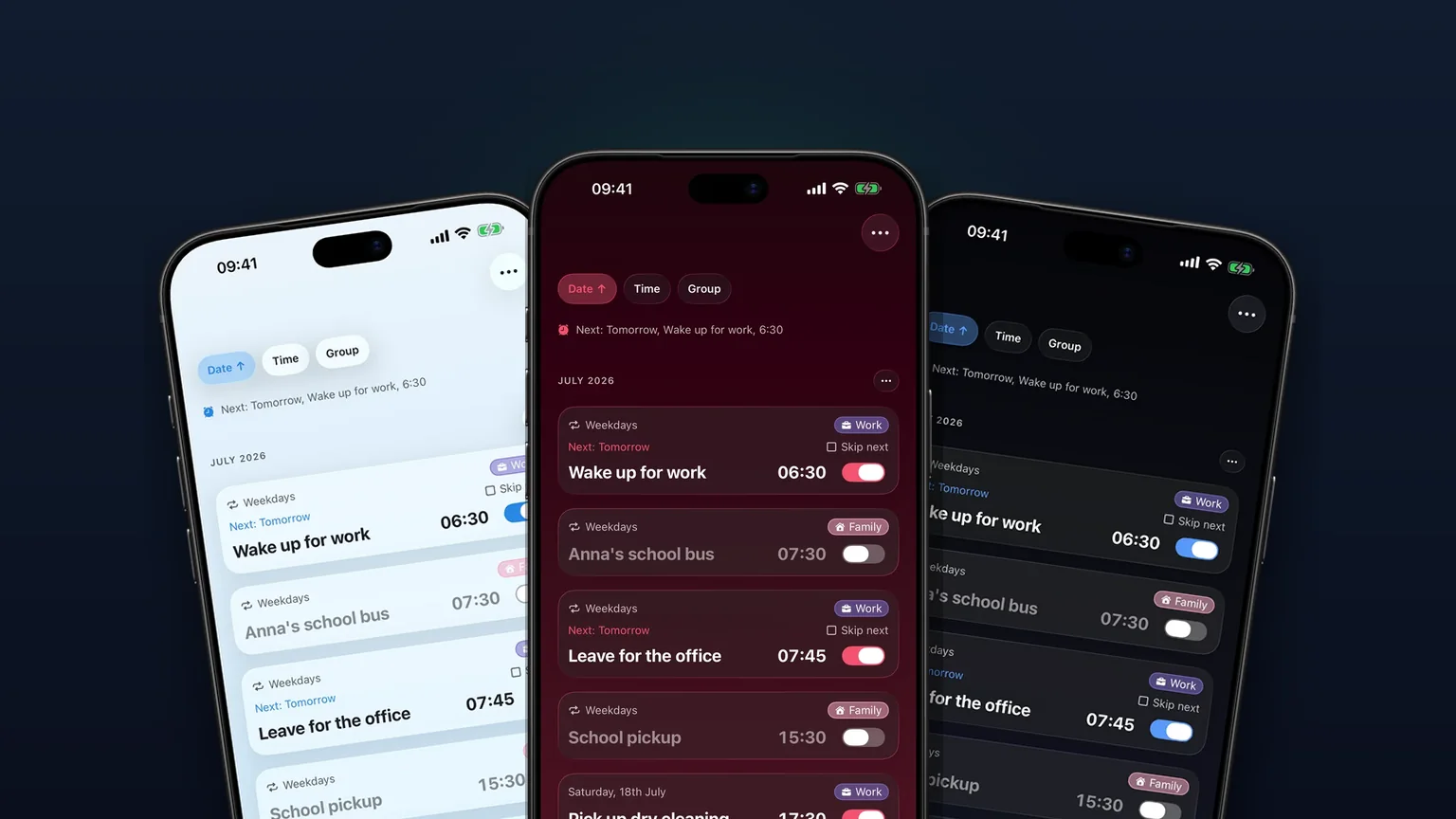
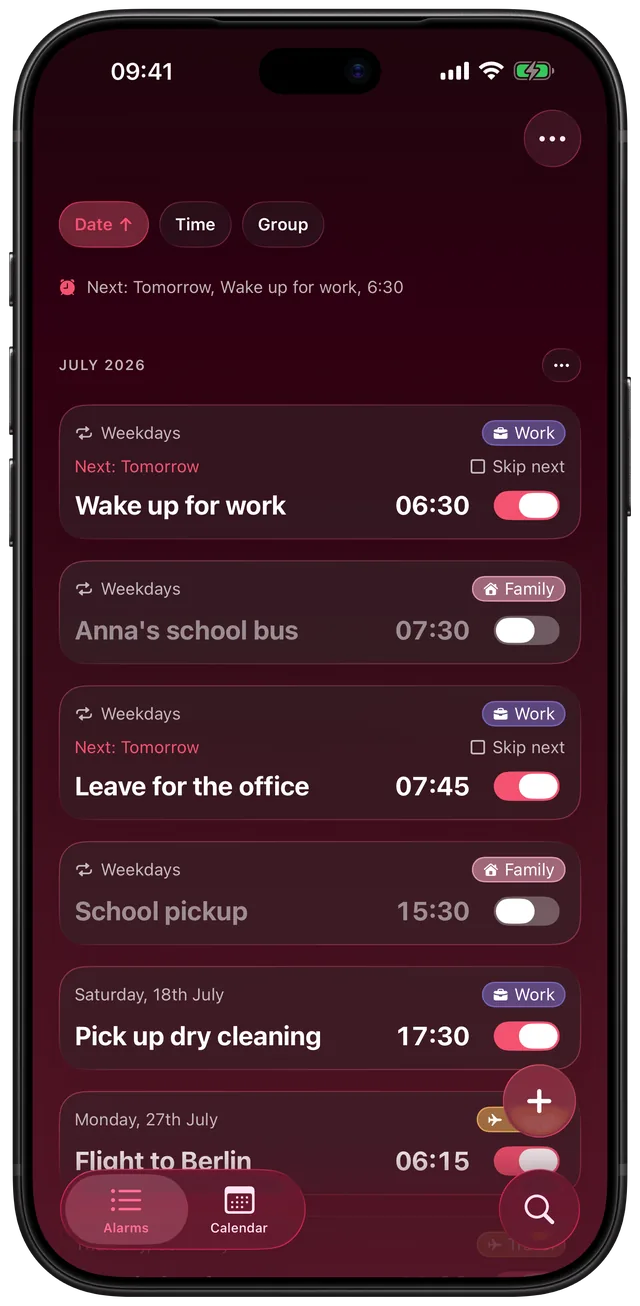
A theme repaints the whole app: the background gradient, the accent color, the cards and the text. An app icon changes what Alarm Clock Planner looks like on your Home Screen. The two are separate choices, so you can run a light theme with a dark icon, or the other way round.
The built-in Clock app has one look that follows iOS. Apple's own guide to customizing the Home Screen covers restyling icons in general. What this app adds is a choice of palettes inside the alarm list itself, such as a dark Midnight or a soft Pistachio, plus a few alternate icons.
How to change your theme and icon
- On the Alarms tab, tap the ... menu and choose Settings.
- Without Premium, the Theme card is right there in Settings. With Premium, it sits one tap deeper: under Appearance, tap Theme & text size.
- Under App theme, scroll the row of round swatches. Each swatch shows the background gradient with an accent dot. Tap one and the whole app repaints at once.
- Under App icon, scroll the row of icon previews and tap one. iOS then shows its own confirmation alert that the icon changed.
The picker opens scrolled to your current theme and icon. A selected swatch gets a ring in the accent color. A locked swatch is dimmed with a small padlock, and tapping it opens the Premium screen instead of applying the look.
Your theme also reaches the next-alarm widget: the time, the toggle and the alarm icon there take your theme's accent color, on the widget's fixed dark card. The widgets feature page covers the widget itself.
Every theme and icon
| What | Choices | Free or Premium |
|---|---|---|
| Dark themes (14) | Green, Forest, Olive, Amber, Orange, Mocha, Ruby, Rose, Purple, Indigo, Midnight, Blue, Teal, Noir | Green and Forest are free, the other 12 are Premium |
| Light themes (9) | Pistachio, Mint, Sky, Lilac, Cherry Blossom, Peach, Butter, Sand, Cloud | Pistachio is free, the other 8 are Premium |
| App icons (6) | Green (the default), Midnight, Purple, Ruby, Orange, Noir | Green is free, the other 5 are Premium |
Green is the original brand look and the default for both the theme and the icon. Without Premium, the three free themes sit first in the row so you can reach them without scrolling. With Premium, the row shows all 14 dark themes, then all 9 light ones.
The icon names match theme names. Picking the Ruby icon does not switch the theme to Ruby, and picking the Ruby theme does not change the icon.
When to use it
A dim bedroom at night
Midnight and Noir use near black backgrounds, so setting an alarm in bed throws far less light around the room. Noir has no hue at all, just black with a light grey accent.
A bright kitchen in the morning
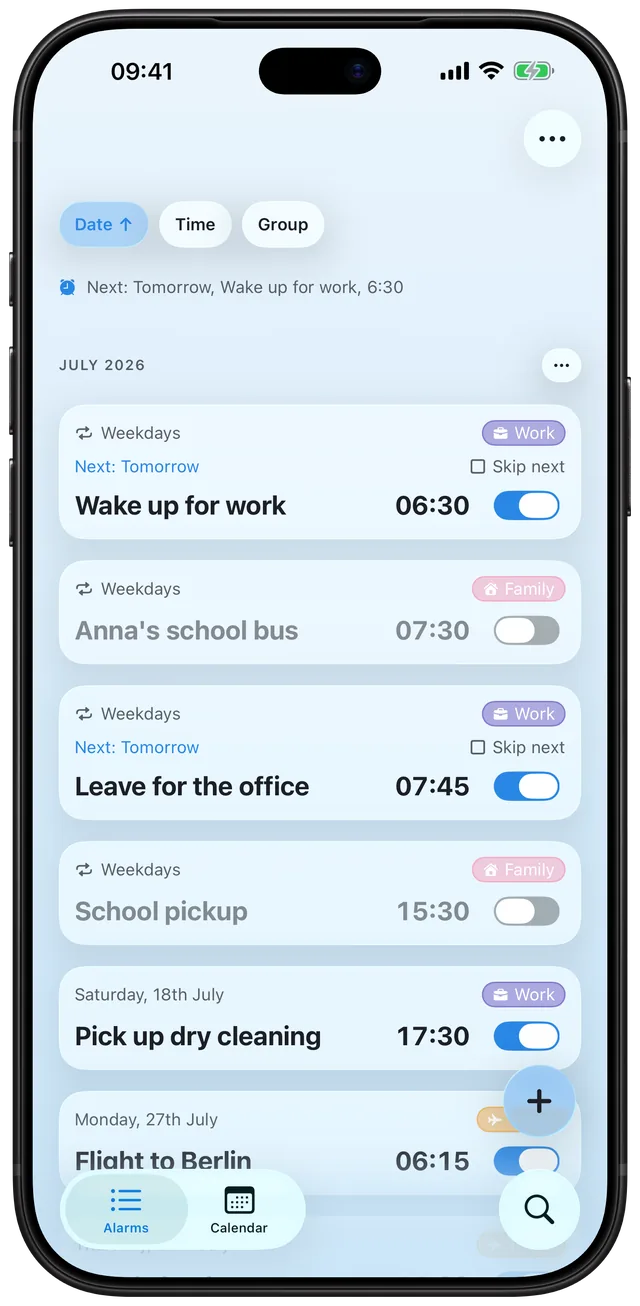
The light themes, such as Sky, Sand and Cloud, use soft backgrounds and near black text. Pistachio is a light theme you get for free.
Matching your Home Screen
If your Home Screen is mostly one color, pick the icon that fits it. Ruby, Purple, Orange, Midnight and Noir cover red, violet, warm, blue and monochrome setups.
Finding the app fast
A strong icon color, such as Orange or Ruby, makes the app easy to spot in a crowded Home Screen. Colors inside the list itself come from tags: see the alarm groups feature.
Trying looks before you decide
Themes switch instantly, so you can test several in a minute. Only an icon change makes iOS show its confirmation alert.
Limits
- The icon does not follow the theme. iOS shows an alert on every icon change and the app cannot hide it. So the app changes the icon only when you tap an icon yourself, never when you pick a theme.
- Only 6 icons, all of them dark. The 5 alternate icons are all dark designs. There is no light, pistachio or green alternate, because the default icon is already green.
- Themes are fixed light or dark. Each theme is either a dark or a light palette. I found no setting that switches themes with iOS Dark Mode.
- Premium unlocks the rest. If a purchase lapses or does not restore, a Premium theme falls back to the free Green theme and a Premium icon to the default one, which brings up the iOS icon alert once.
- No custom colors. You choose from the 23 themes. You cannot mix your own gradient or accent.
- Icon picker visibility. The App icon row appears only on devices that support alternate icons.
Alarm sounds are a separate area. For those, see your own alarm sounds.
Frequently asked questions
Does Alarm Clock Planner have a dark theme?
Yes. Fourteen of the 23 themes are dark, including Green, Forest, Midnight, Noir and Ruby. Green and Forest are free. Each theme is either dark or light, and I found no option that follows iOS Dark Mode automatically.
Can I change the alarm app icon on my iPhone?
Yes. Go to Settings from the ... menu on the Alarms tab, and tap an icon under App icon. There are 6: Green (the default), Midnight, Purple, Ruby, Orange and Noir. Only Green is free.
Does the icon change when I change the theme?
No. The icon and the theme are separate choices. iOS shows a confirmation alert every time an app icon changes, so the app only changes the icon when you tap an icon yourself.
Which themes and icons are free?
Three themes are free: Green, Forest and Pistachio. The Green icon is free. The other 20 themes and 5 icons need Premium. Locked ones show a padlock and open the Premium screen when tapped.
Why is the alarm icon showing on my iPhone?
That small alarm symbol is drawn by iOS, not by an app, so themes and app icons do not change it. The theme and icon options only affect how Alarm Clock Planner looks inside the app and on your Home Screen.
Do themes change the widget too?
Partly. The next-alarm widget picks up your theme's accent color for the time, the toggle and the alarm icon, and the app refreshes it when you change themes. The widget's card itself stays dark on every theme.
Sources
Make your alarm app look the way you like
Get Alarm Clock Planner on the App StoreMore features
Alarm groups with color-coded tags
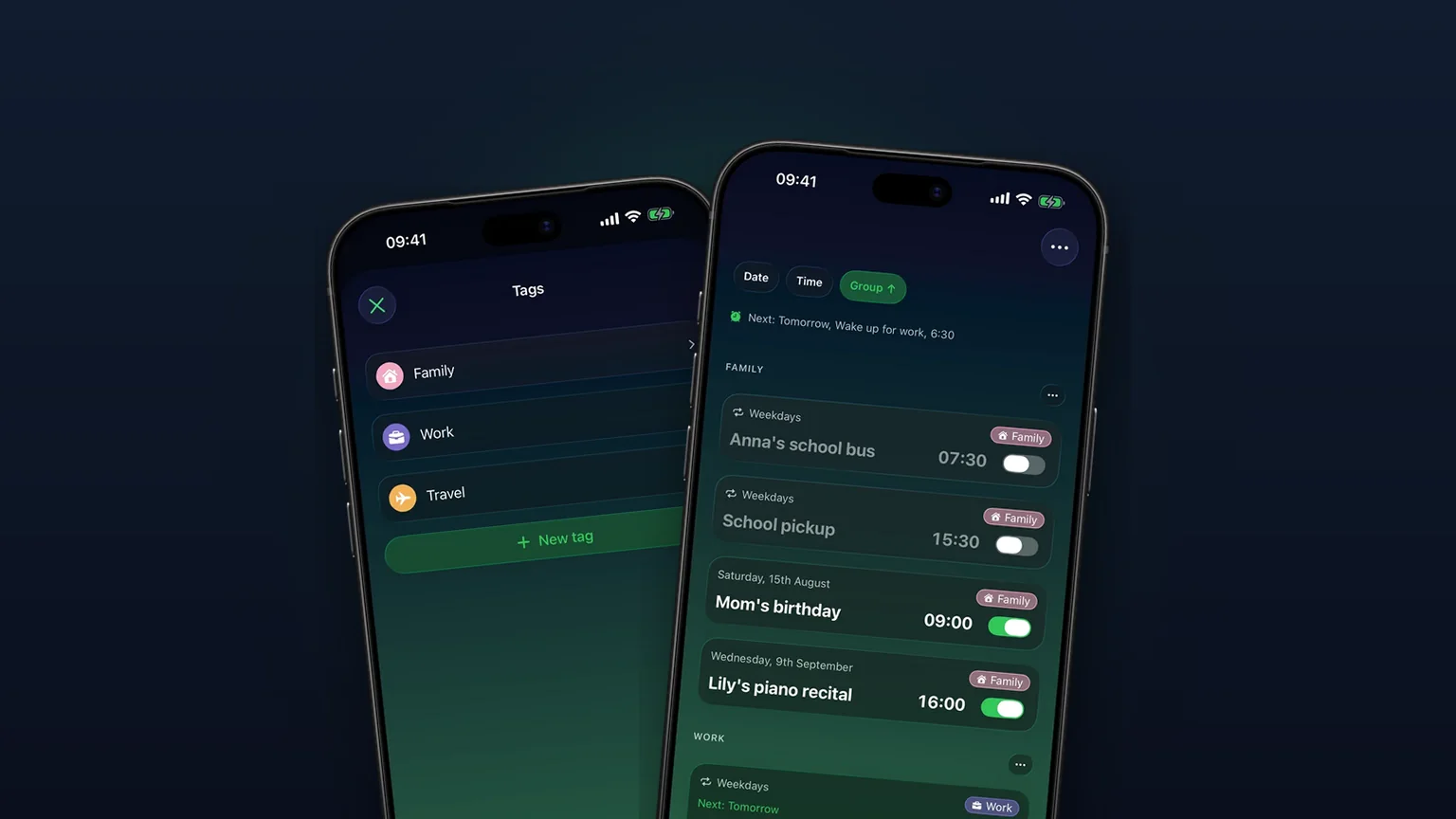
Color-coded groups like Work, Family or Travel, each with its own sound and snooze, plus switching and bulk edits for a whole group at once with unlimited access.
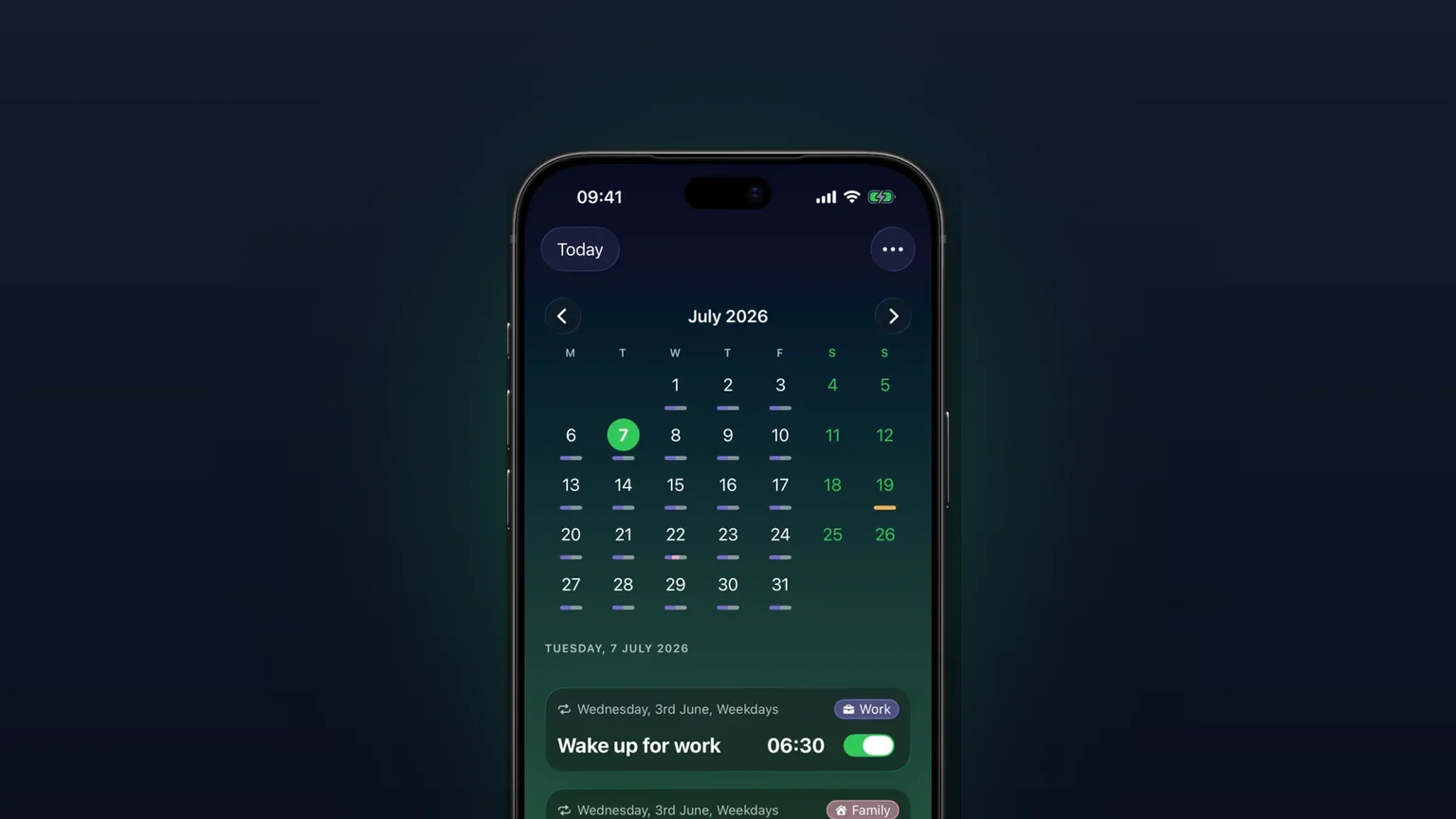
Calendar view of every alarm
Every alarm on a month grid, coloured by tag; tap a day to see, edit or skip what rings that day.

Your own alarm sounds, from any audio file
Import any audio file as an alarm sound, trimmed to 30 seconds, or pick one of 15 built-in tones, per alarm, per group or as your default.