How to Skip Your Sleep Schedule on iPhone for One Day
Tomorrow is a day off, and the Sleep Schedule you set up in Health will wake you at 6:30 anyway. You want one quiet morning, not to take apart a schedule you will need again on Monday.
 Alarm Clock Planner is an iPhone appPoint your iPhone camera at the code to install it.
or text me the link
The short answer
Yes, for the next morning. In the Health app, open Sleep, tap Edit under Your Schedule, turn off Alarm and tap Done (see the iPhone steps). Apple calls this a Next Wake Up Only change: it applies only to the following day, and the full schedule stays as it is. On Apple Watch it is one tap: Skip for Tonight in the Alarms app (see the Apple Watch steps).
What the built-in tools cannot do is skip a day further ahead. Next Wake Up Only reaches the next wake-up and nothing beyond it, so a holiday next Friday has to wait until Thursday. If that is your situation, skipping a day further ahead covers the options.
These steps follow Apple's sleep help page published on 14 September 2026, the day iOS 27 came out. The current version as of this guide is iOS 27.2.
Skip the next wake-up on iPhone
The Sleep Schedule lives in the Health app, so that is where the one-day change happens:
- Open the Health app and tap the Browse tab. If Sleep is in your Favorites, you can also reach it from the Summary page.
- Tap Sleep, then tap Sleep again.
- Under Your Schedule, tap Edit on the sleep schedule. This is the Next Wake Up Only editor.
- Turn off Alarm.
- Tap Done.
Because this is a Next Wake Up Only change, it applies only to the following day. The day after, the schedule wakes you as usual, with nothing to switch back on.
The same editor has a curved slider for bedtime and wake-up. If you only want a later start rather than no alarm at all, drag the wake-up end of the slider instead of turning the alarm off. That change also applies to the next day only.
Apple notes that you can also change your next wake-up alarm from the Clock app, which is handy if Clock is already open on your nightstand.
The danger is editing the wrong thing. Under Full Schedule & Options, changes apply to all future days, so an alarm switched off there stays off. For a single morning, stay in the editor under Your Schedule.
Skip it on Apple Watch
If you wear an Apple Watch to bed, skipping from the wrist is faster. Apple's watchOS 27 guide gives two routes:
- Alarms app: tap the alarm shown below the Sleep button, then tap Skip for Tonight.
- Sleep app: tap the Wake Up Alarm button and turn off Alarm. To move the time instead, tap the wake-up time and set a new one with the Digital Crown.
Either way, Apple's guide says that after your next wake-up time, your normal alarm resumes.
Skip, edit or turn off: which switch to use
The Sleep feature has several switches that sound alike and behave very differently. Pick by what you want the morning after to look like:
| You want | Where | Back on its own? |
|---|---|---|
| No alarm tomorrow only | Your Schedule, Edit, Alarm off | Yes |
| A later alarm tomorrow only | Your Schedule, Edit, drag the slider | Yes |
| No alarm on one schedule, for good | Full Schedule & Options, schedule, Alarm off | No |
| The whole schedule paused | Sleep Schedule switch at the top | No |
| A specific day next week | Not possible in Health | n/a |
Turning the schedule off for longer
For a week of holiday, skipping one morning at a time means seven evenings of remembering. Two longer switches exist, and both stay off until you turn them back on:
- The whole schedule. In Health, go to Browse, Sleep, then Full Schedule & Options, and tap Sleep Schedule at the top of the screen to turn it off or on.
- One schedule's alarm. If you have separate weekday and weekend schedules, tap the schedule under Full Schedule & Options, tap Edit and turn off Alarm there. That changes every future day of that schedule.
Set yourself a reminder for the evening before you go back to work. The return trip is where an off switch can catch you out: the schedule stays exactly as you left it. The same trap exists with ordinary alarms, and the guide to skipping an alarm for one day explains why toggling off and on is the risky part.
Skipping a day further ahead
Next Wake Up Only has a fixed reach: the next wake-up. You can know on Monday that Friday is a public holiday, but Health gives you no way to mark Friday now. You either wait until Thursday evening and skip it then, or turn the schedule's alarm off and rely on remembering to turn it back on. Both put the job on your memory at the wrong moment.
If the alarm part of the Sleep Schedule is what you care about, one option is to let a separate alarm app do the waking. In Alarm Clock Planner, a repeating alarm can skip any single occurrence, not only the next one:
- Create your wake-up alarm with a weekday repeat, for example Weekdays at 6:30. The app also repeats daily, on chosen days, monthly or yearly (see the recurring alarm guide).
- To skip tomorrow, tap Skip next on the alarm card in the Alarms tab. The skip control appears while the alarm is switched on.
- To skip a day further ahead, open the Calendar tab, tap the day, and tap Skip this instance on the alarm. Only that day is skipped; the next morning stays armed.
- The card then reads Skipping with the day, for example Skipping Fri 13 Nov (the date follows your region's format), so you can see at a glance which morning is quiet. Tap it again to undo.
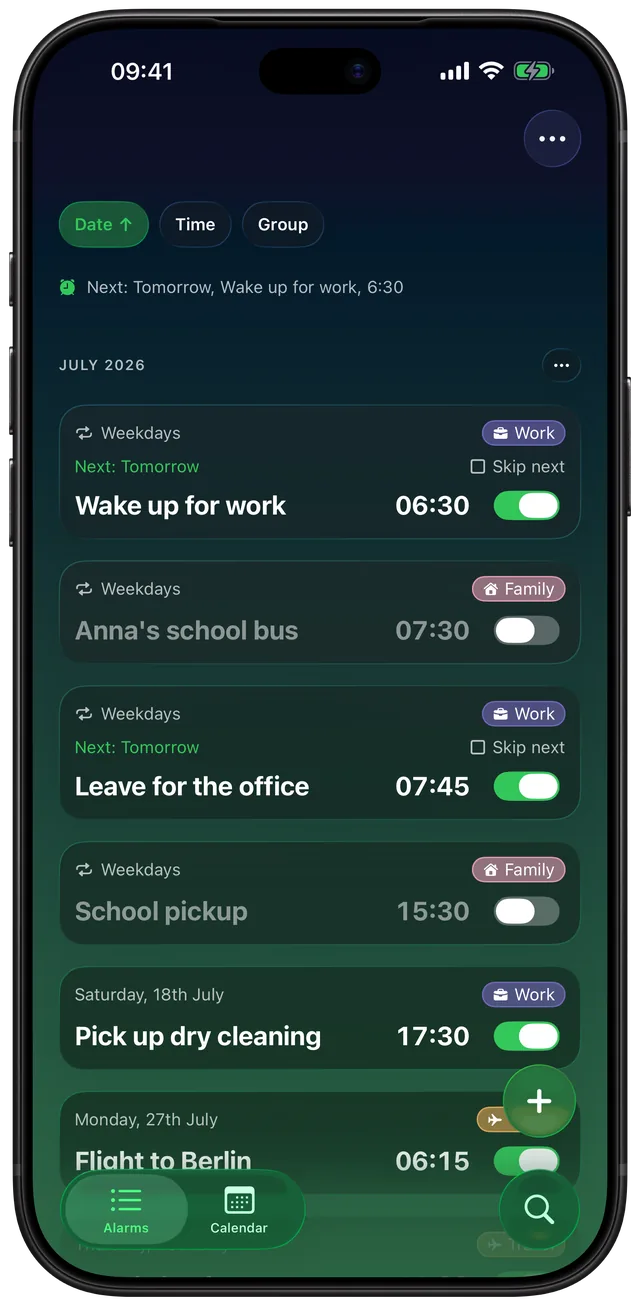
Skipping is part of the paid unlock (Yearly or Lifetime). Up to 3 alarms are free, and the skip control is visible on the free tier with a padlock. The app's alarms run on Apple's AlarmKit framework, which Apple describes as alerts that break through silent mode and the current Focus, so a 6:30 alarm still rings on Silent (more in does the iPhone alarm go off on Silent).
To avoid two alarms, turn off Alarm in the schedule under Full Schedule & Options and keep the Sleep Schedule itself on for its bedtime and tracking. For a whole holiday week, put your work alarms in one group and switch the group off in one move.
Should you skip it at all?
Skipping the alarm is easy. Whether to sleep in is a separate question, and the research leans toward keeping your times steady. A 2024 study in the journal Sleep followed 60,977 UK Biobank participants who wore a wrist accelerometer for 7 days, then tracked them for an average of 6.3 years. People whose sleep was more regular from day to day had a 20% to 48% lower risk of dying from any cause than the least regular group. Sleep regularity predicted that risk more strongly than sleep duration did.
The study measured an association, not cause and effect, and one lie-in is not what it measured. Still, it is a fair reason to treat a skipped alarm as an occasional exception rather than a weekly habit, and to keep bedtime close to usual the night before.
If it still rang, or did not come back
- It rang anyway. Check that you edited under Your Schedule, not a different alarm. A regular alarm in the Clock app is separate from the sleep schedule, so a weekday alarm there would still ring.
- It did not ring the next day. Check Full Schedule & Options. If the Sleep Schedule switch at the top or the schedule's own Alarm switch is off, a change was made to the full schedule rather than the next wake-up.
- You use Apple Watch and iPhone. The watch's Sleep app has an option to choose whether the alarm always plays on your iPhone. If you skip from one device, glance at the other before you sleep.
Frequently asked questions
How do I skip my sleep schedule on iPhone for one day?
Open Health, tap Browse, then Sleep twice. Under Your Schedule tap Edit, turn off Alarm and tap Done. Apple calls this a Next Wake Up Only change, so it applies only to the following day and the schedule carries on after that.
Will my sleep schedule alarm come back the next day?
Yes, if you changed it under Your Schedule. Next Wake Up Only changes apply only to the following day. If you turned the alarm off under Full Schedule & Options or switched off Sleep Schedule at the top, it stays off until you turn it back on.
How do I skip the sleep alarm on Apple Watch?
Open the Alarms app, tap the alarm shown below the Sleep button and tap Skip for Tonight. You can also tap Wake Up Alarm in the Sleep app and turn off Alarm. Apple says your normal alarm resumes after the next wake-up time.
Can I skip a sleep schedule alarm for a day next week?
Not in the Health app. Next Wake Up Only reaches only the next wake-up, so you would skip it the evening before. An alarm app such as Alarm Clock Planner can skip one specific future day from its Calendar tab while leaving the rest of the repeat armed.
How do I turn off the sleep schedule completely?
In Health, go to Browse, Sleep, then Full Schedule & Options, and tap Sleep Schedule at the top of the screen. The same switch turns it back on. It stays off until you do.
Is it bad to skip my wake-up alarm and sleep in?
An occasional lie-in is not what the research measured, but regularity matters. A 2024 study of 60,977 adults found that more regular sleep went with a 20% to 48% lower risk of death from any cause than the least regular sleep. It was an association, not proof of cause.
Sources
- Apple Support, Track your sleep on Apple Watch and use Sleep on iPhone (published 14 September 2026)
- Apple Watch User Guide (watchOS 27), Track your sleep with Apple Watch
- Apple Support, Apple security releases (iOS 27 on 14 Sep 2026, iOS 27.2 on 26 Oct 2026)
- Apple Developer, WWDC25: Wake up to the AlarmKit API
- Windred et al., Sleep regularity is a stronger predictor of mortality risk than sleep duration. Sleep, 2024